Workspaces
A workspace is where your projects, library, custom styles, cloned voices and brand kit live, together with the plan and the credits that pay for them. Every account starts with a workspace of its own, and anyone can create more, for example one per team or one per client. Each workspace has its own plan. On Creator and Pro, a workspace becomes a team workspace: you invite people by email, and everyone in it works on the same projects and spends the same credits.
Plans and seats
| Plan | Team workspace | People, owner included |
|---|---|---|
| Free | No | 1 |
| Starter | No | 1 |
| Creator | Yes | Up to 15 |
| Pro | Yes | Unlimited |
Anyone can be invited into a team workspace, whatever plan their own account is on. Their seat counts against the team workspace’s plan, and what they make there is paid with the team workspace’s credits.
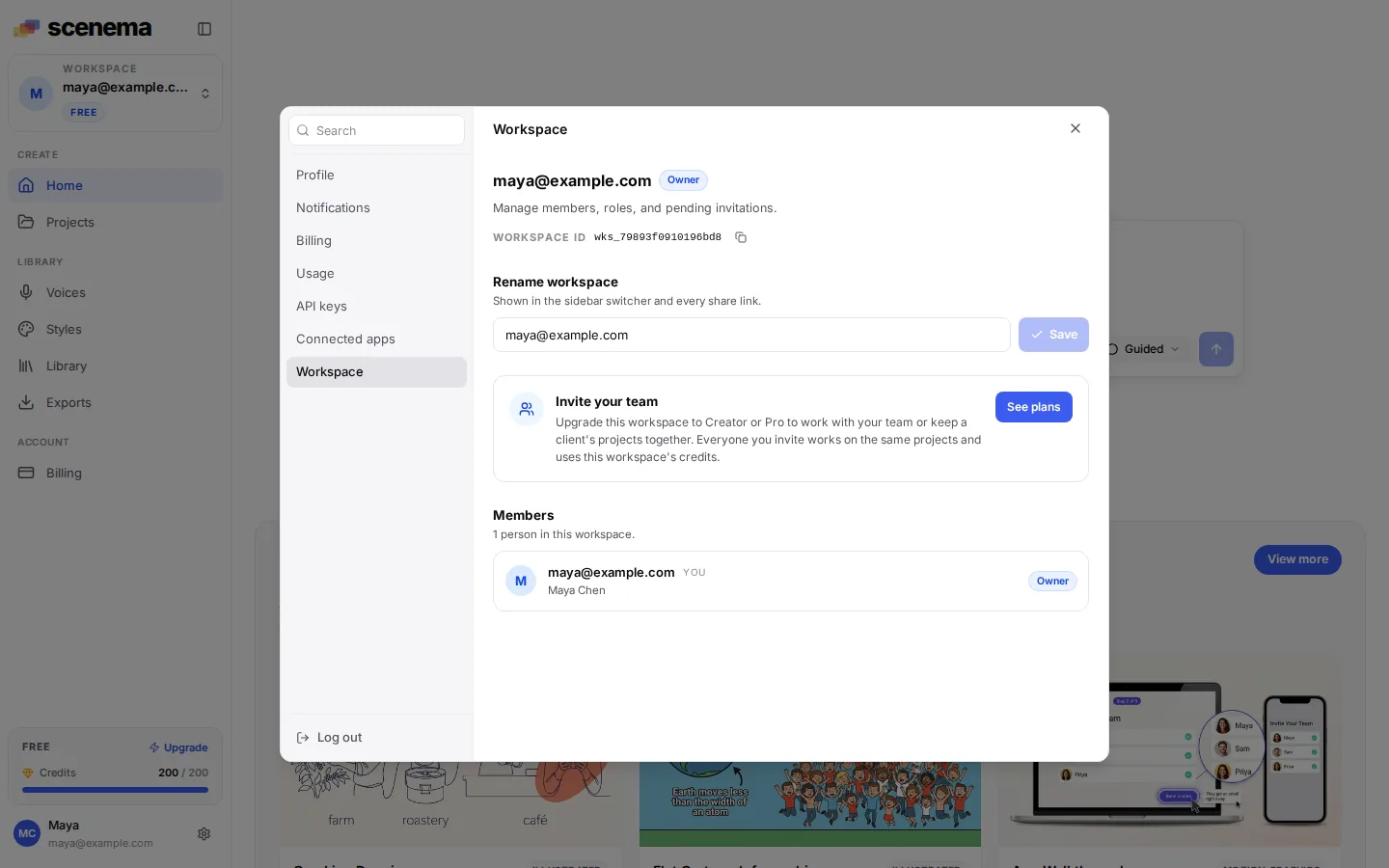
On Free or Starter, Settings, Workspace shows that inviting a team or working with clients needs Creator or Pro, with a link to the plans.
Create a workspace
Open the workspace switcher at the top of the sidebar and choose Add workspace. Give it a name, such as a team or a client, and Scenema switches to it.
A new workspace starts on the Free plan with no credits of its own, and it is separate from your other workspaces: its projects, library, styles, voices and credits stay in it. To invite people into it, subscribe that workspace to Creator or Pro from Settings, Billing while it is open.
Set up your team workspace
- Subscribe to Creator or Pro from Settings, Billing. Your workspace becomes your team workspace as soon as the plan is active.
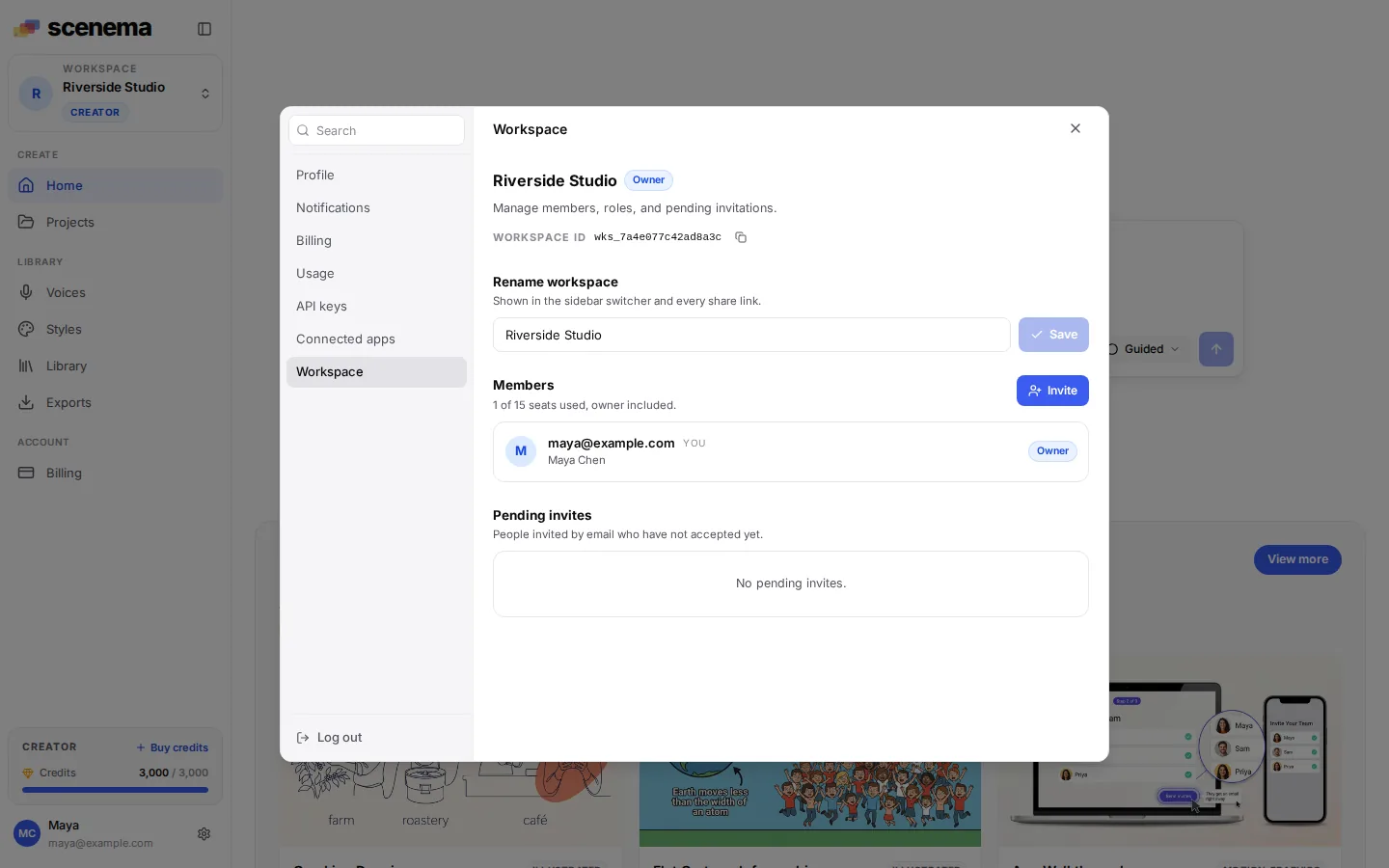
- Open Settings, Workspace and give it a name your team will recognise, such as your company or class. The name shows in everyone’s sidebar.
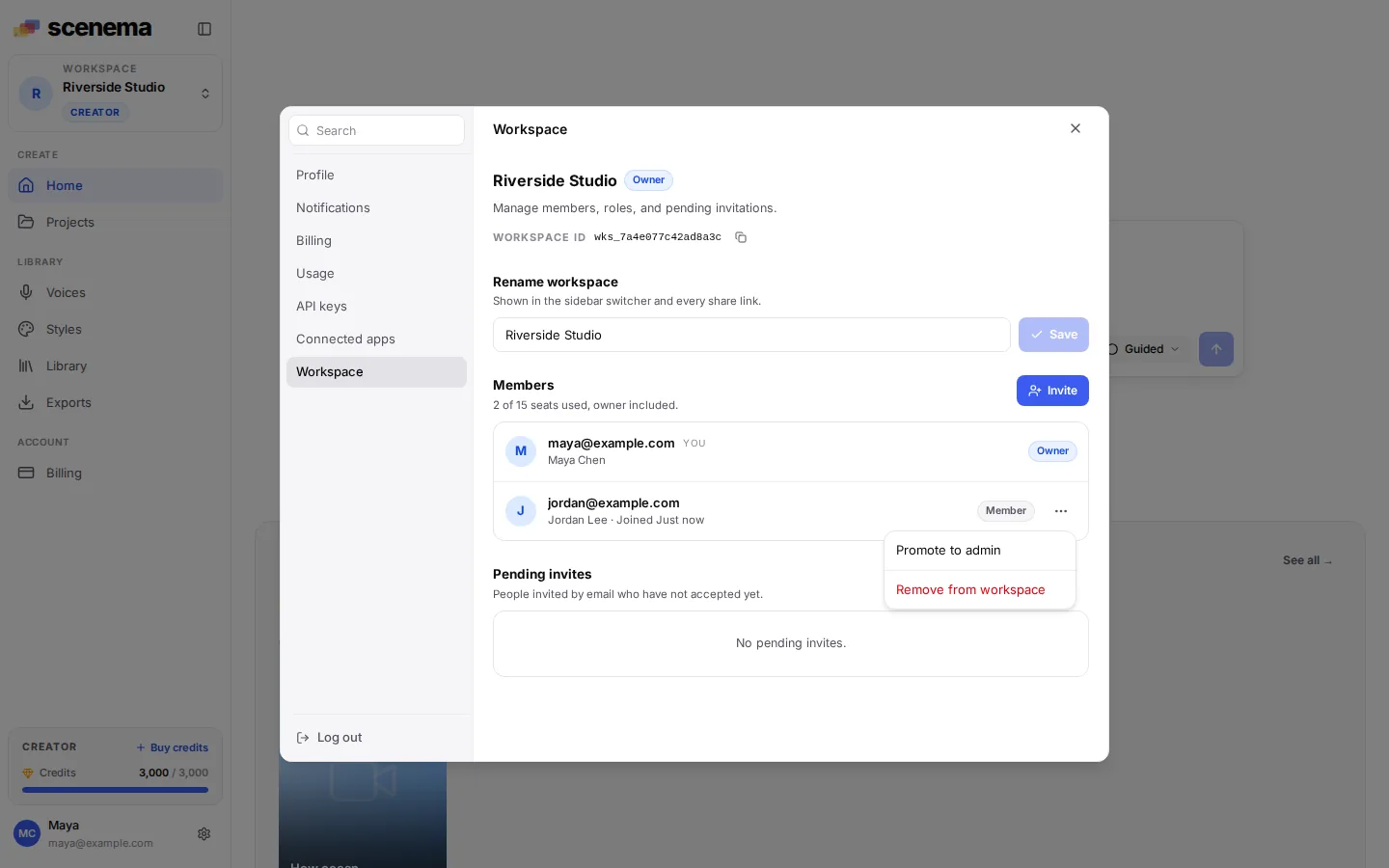
The Members section shows how many seats are in use, the owner included.
Invite people
In Settings, Workspace, choose Invite, enter the person’s email address and pick a role, then choose Send invite.
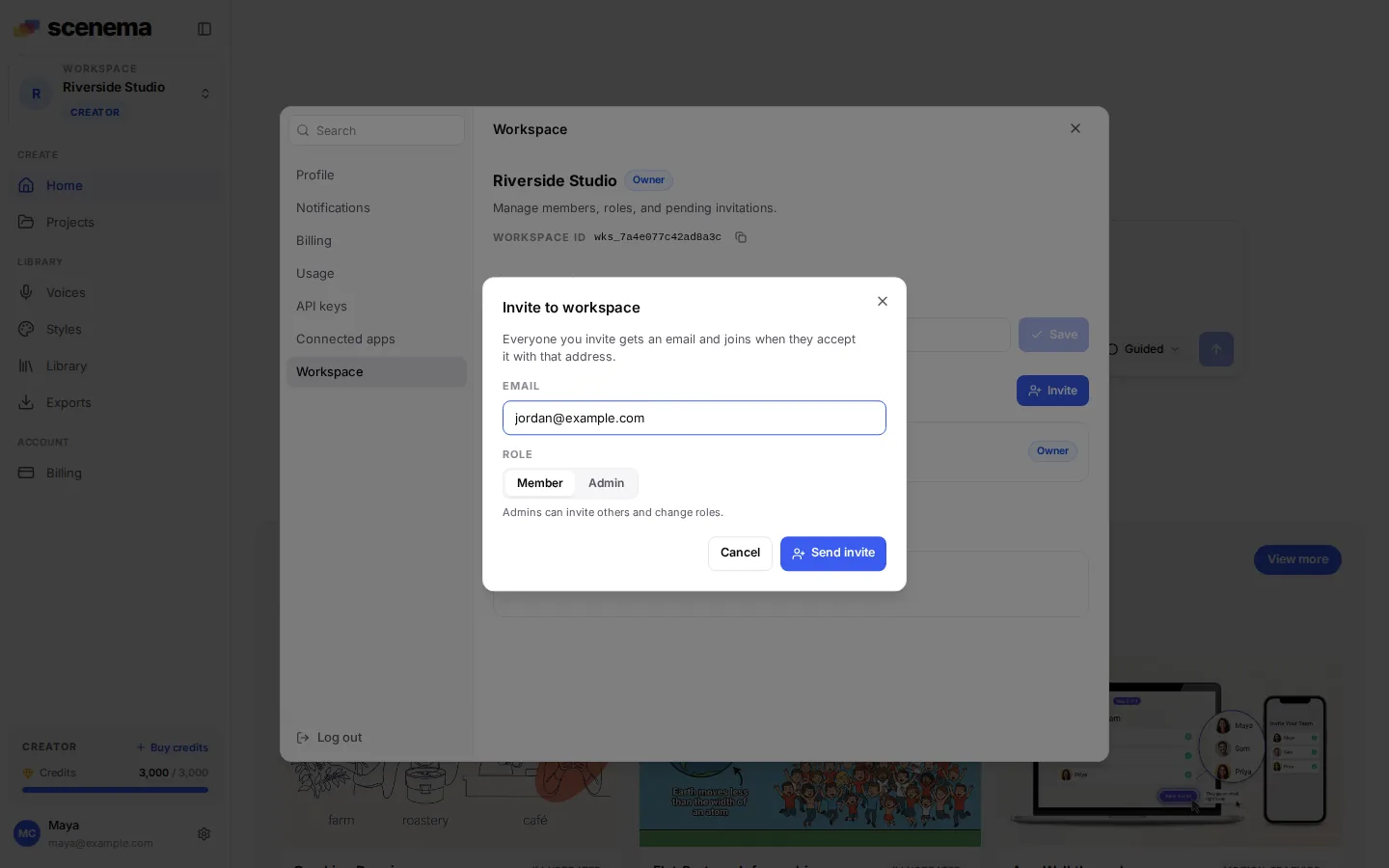
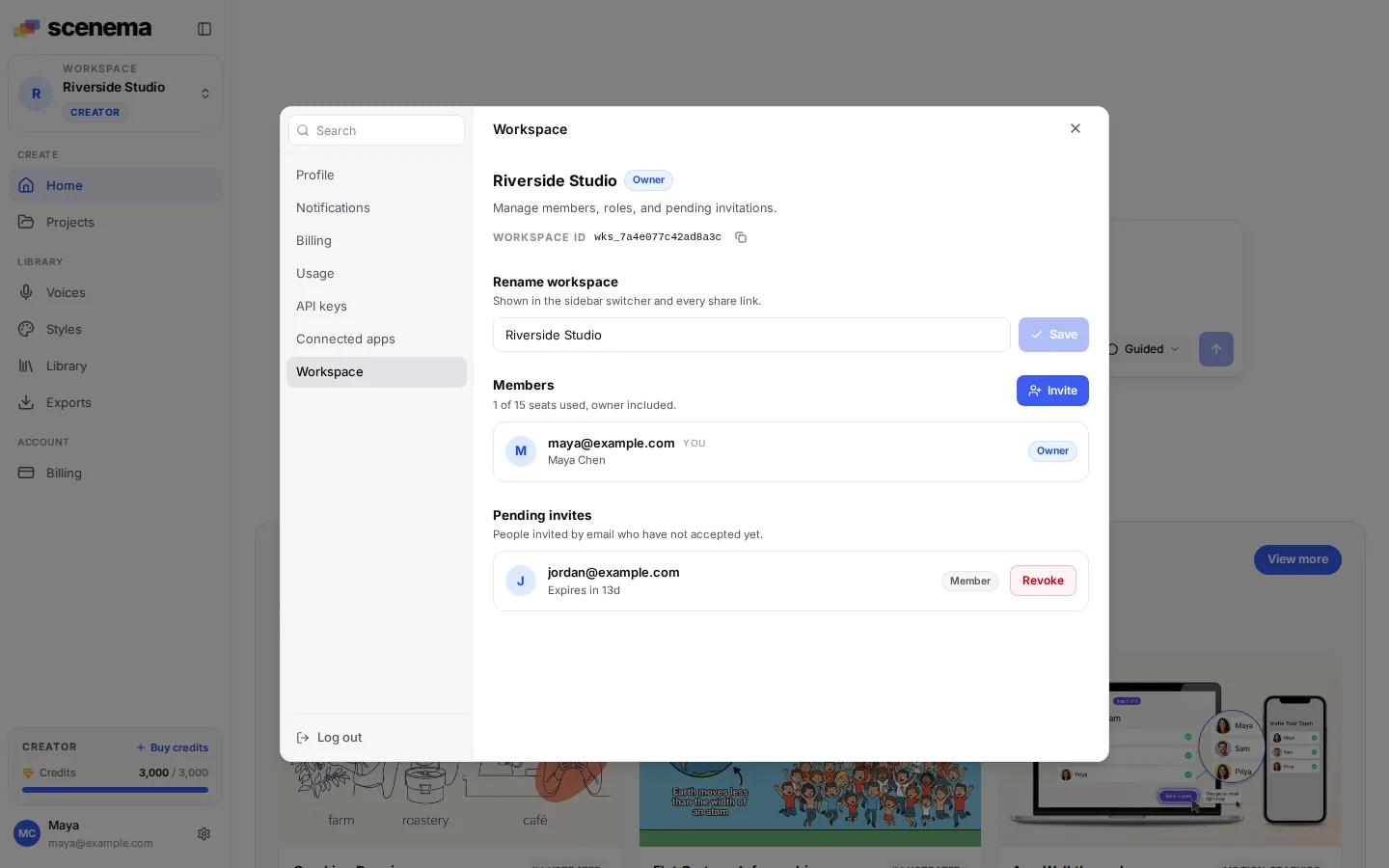
- The invite is sent by email and stays open for 14 days. Until then it shows under Pending invites, where an owner or admin can revoke it.
- A pending invite holds a seat. On Creator, members and pending invites together stay within 15.
- An invite can only be accepted by the email address it was sent to. A forwarded invite does not work for anyone else.
Accept an invite
An invite reaches the person in two places:
- The email. The Accept invite button opens Scenema. Someone without an account signs up with the invited address and lands in the workspace.
- The dashboard. Someone already signed in sees the invite at the top of their dashboard, with Accept and Decline.

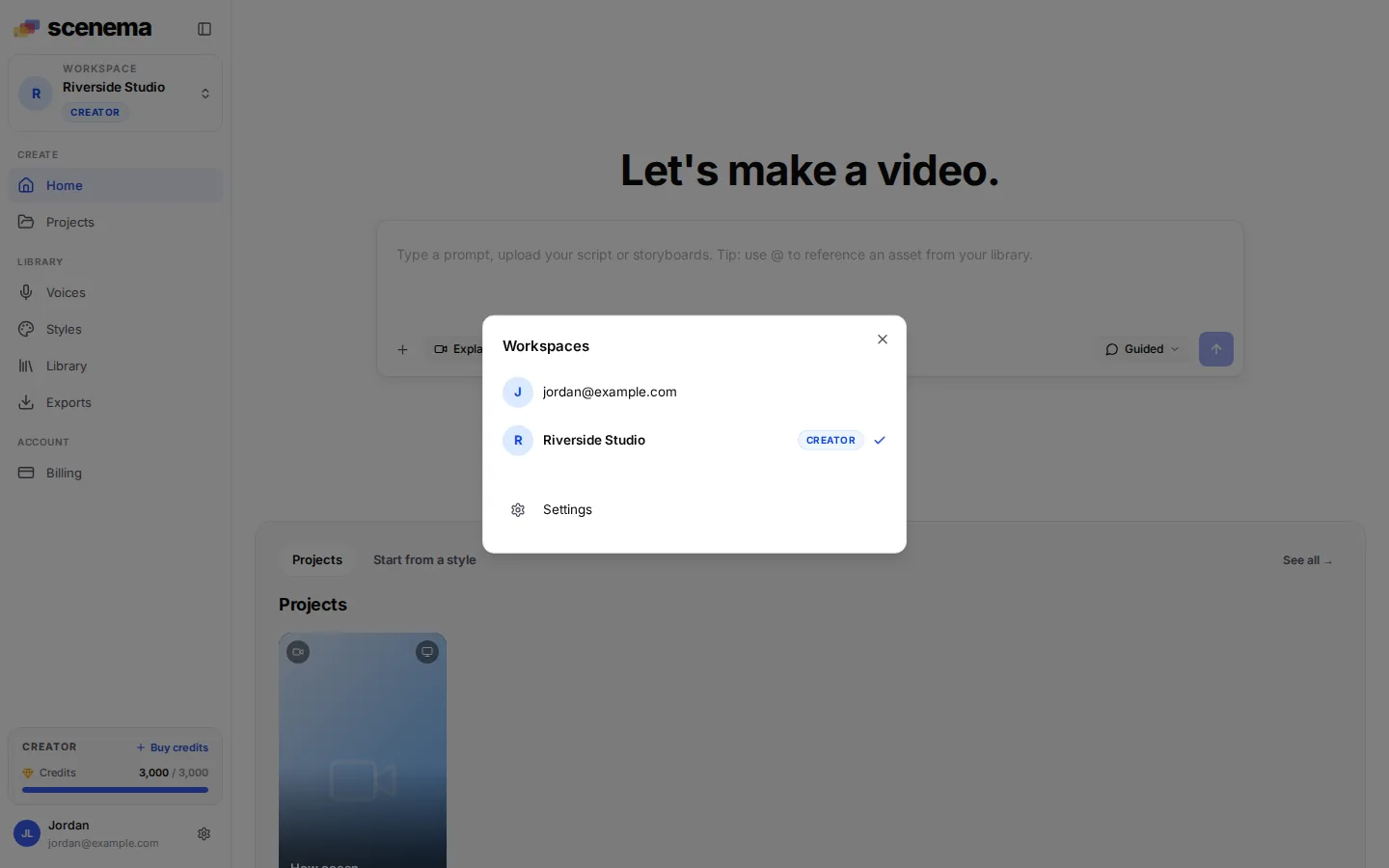
After accepting, Scenema opens the team workspace. The workspace switcher at the top of the sidebar lists every workspace you belong to; choose one to switch.
Declining removes the invite and frees its seat.
Roles
| Owner | Admin | Member | |
|---|---|---|---|
| Open and edit every project, video or audio | Yes | Yes | Yes |
| Create projects and generate with the workspace’s credits | Yes | Yes | Yes |
| Delete a project made by someone else | Yes | Yes | No |
| Invite people, revoke invites | Yes | Yes | No |
| Change roles, remove members | Yes | Yes | No |
| Rename the workspace | Yes | Yes | No |
| Change the plan, buy credits, manage payment | Yes | Yes | No |
| Leave the workspace | No | Yes | Yes |
Each workspace has one owner: the person whose plan it is. To make someone an admin, or an admin a member again, open the menu next to their name in Settings, Workspace.
Working together
Everything in a team workspace belongs to the workspace, so everyone in it works on the same things:
- Projects. Every project, video or audio, is open to every member. Anyone can open it, chat with the Director about it, edit shots and narration, generate and export. The person who made a project, an admin or the owner can delete it.
- Library. Uploaded files and folders are shared with the workspace.
- Styles, voices and brand kit. Custom styles, cloned voices and the brand kit made in the workspace are available to everyone in it.
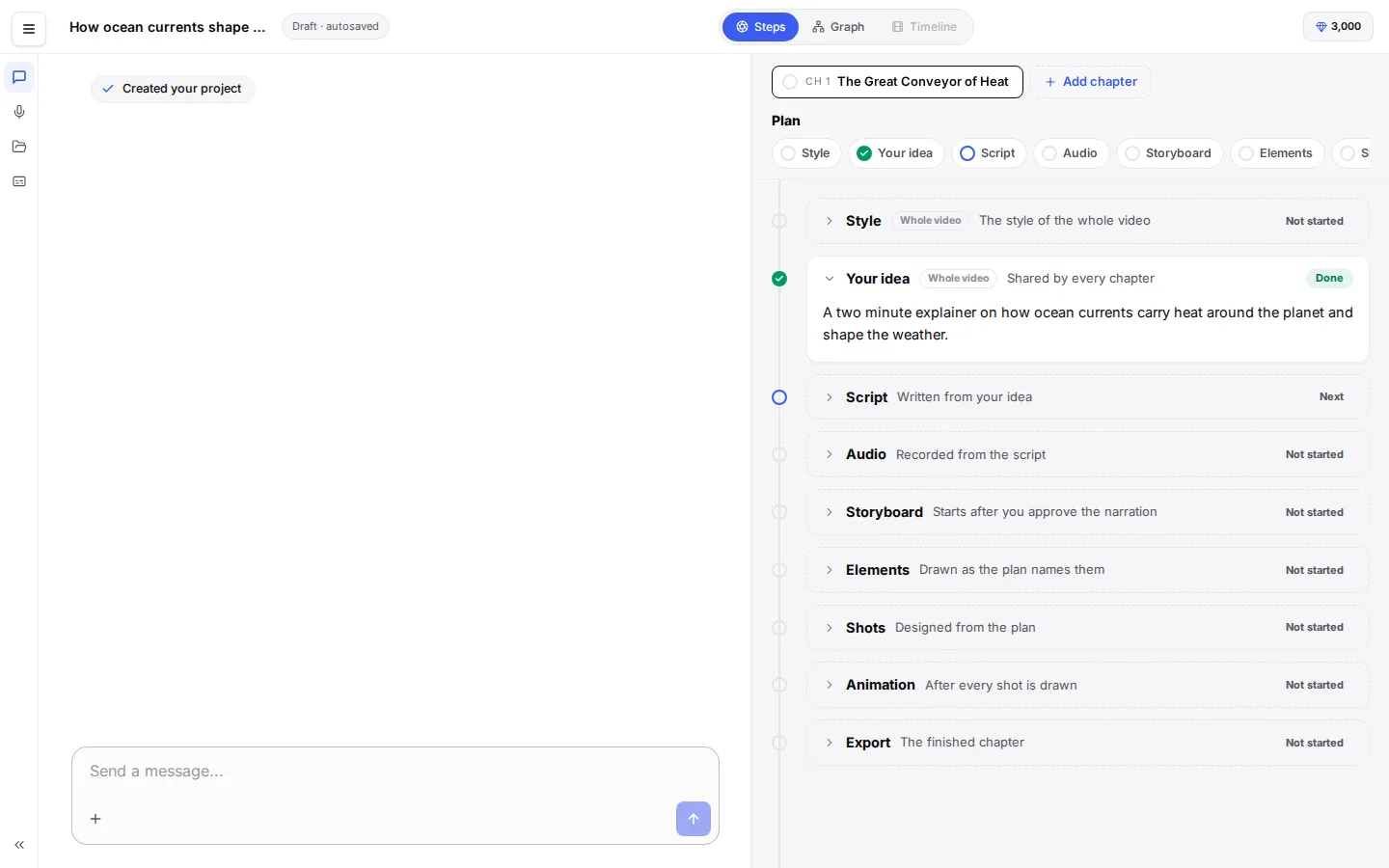
Nothing moves between workspaces. Projects and files in your own workspace stay private to you, and the team sees only what is made in the team workspace.
Credits and billing
A team workspace has one plan and one credit balance. Every generation in it, by anyone, is charged to that balance, and Settings, Usage lists each charge.
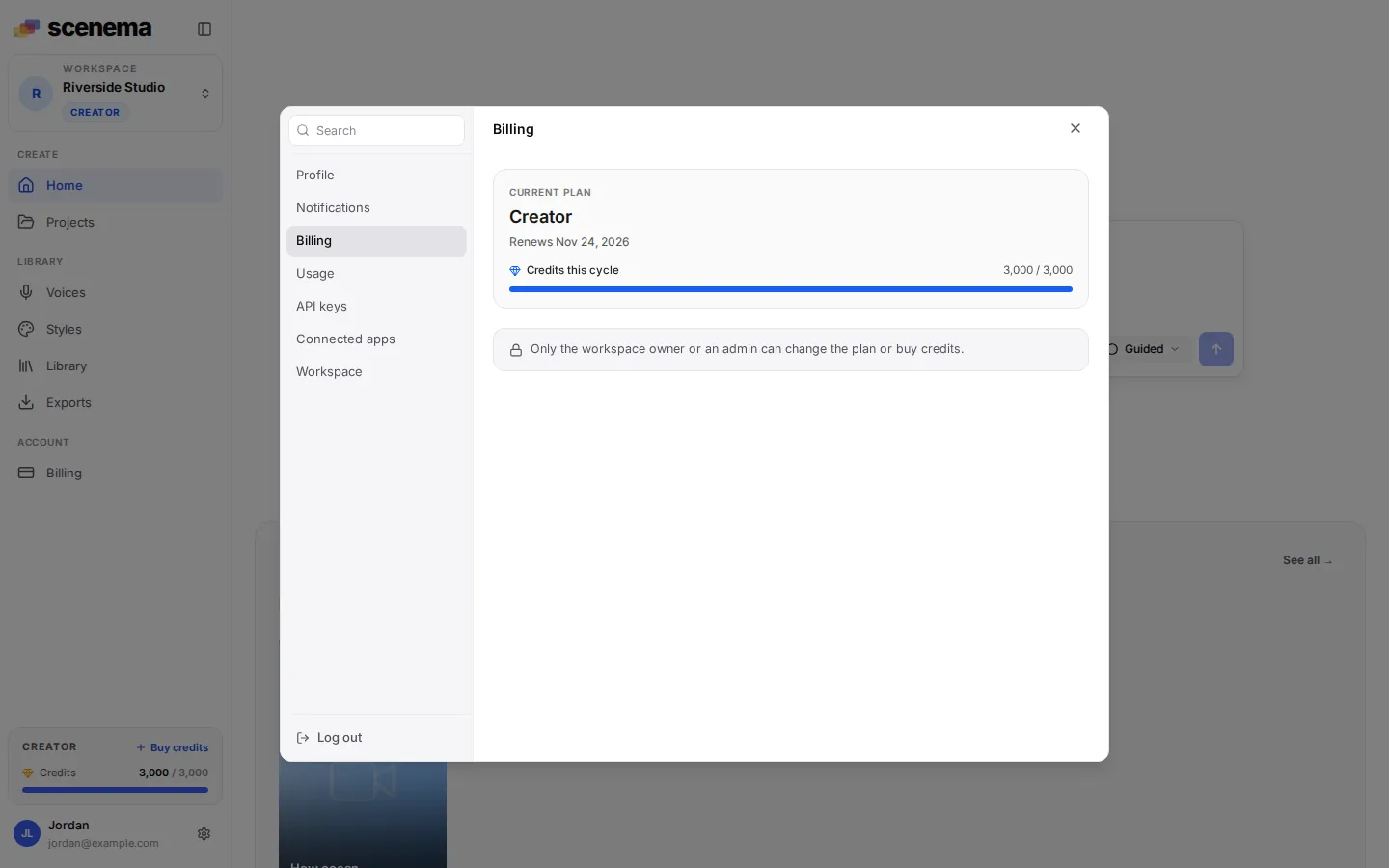
The owner and admins manage billing: they change the plan, buy credits and manage payment. Members see the balance and the plan, with a note that billing is for the owner and admins.
Credits a member has in their own workspace stay there. Switching workspaces switches which balance pays.
Remove people or leave
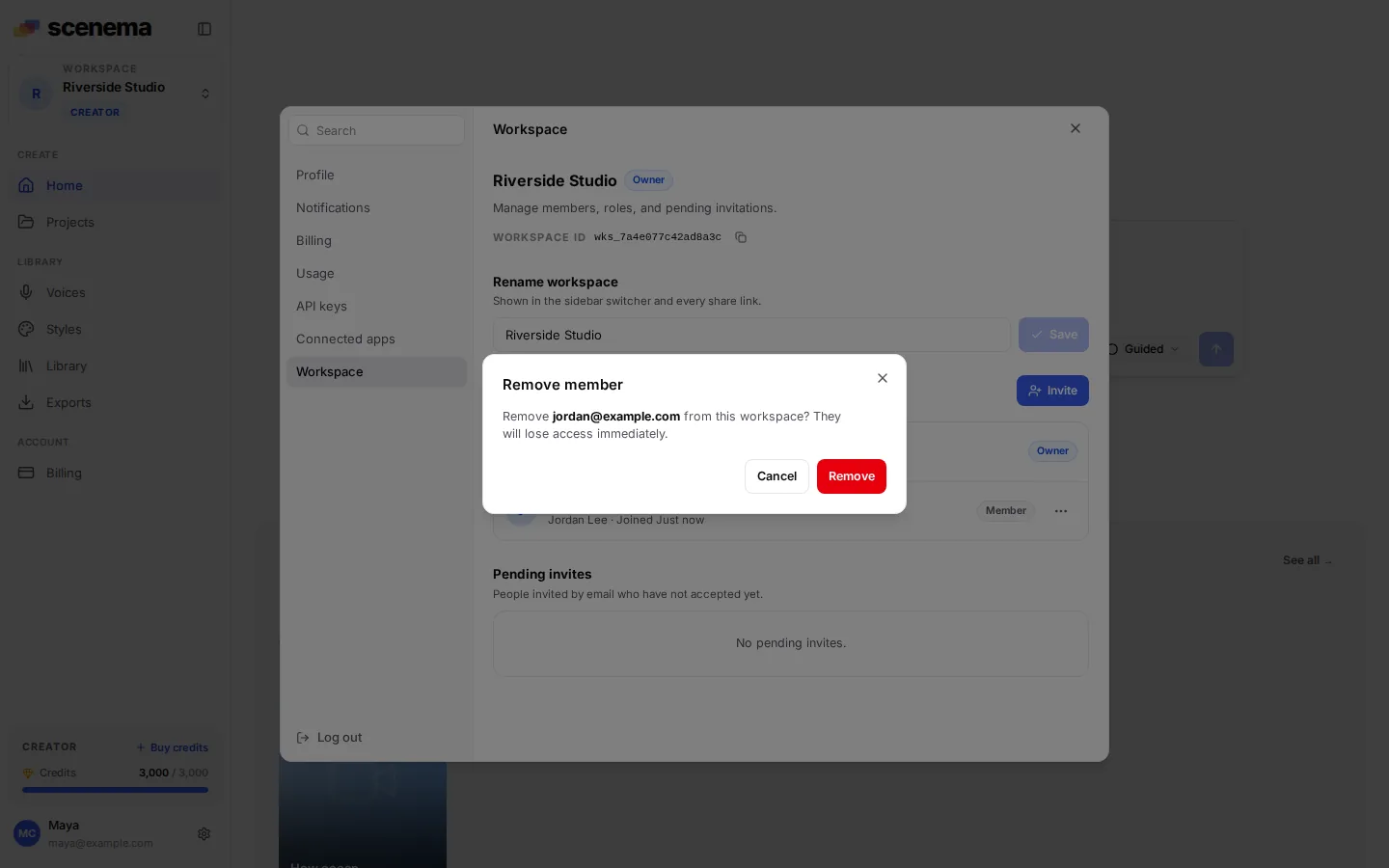
- An owner or admin removes someone from the member menu. They lose access at once, and Scenema emails them.
- A member or admin leaves from Settings, Workspace, Leave workspace. The owner cannot leave their own workspace.
- What someone made stays in the workspace when they go. Their own workspace is not affected.
Changing plans
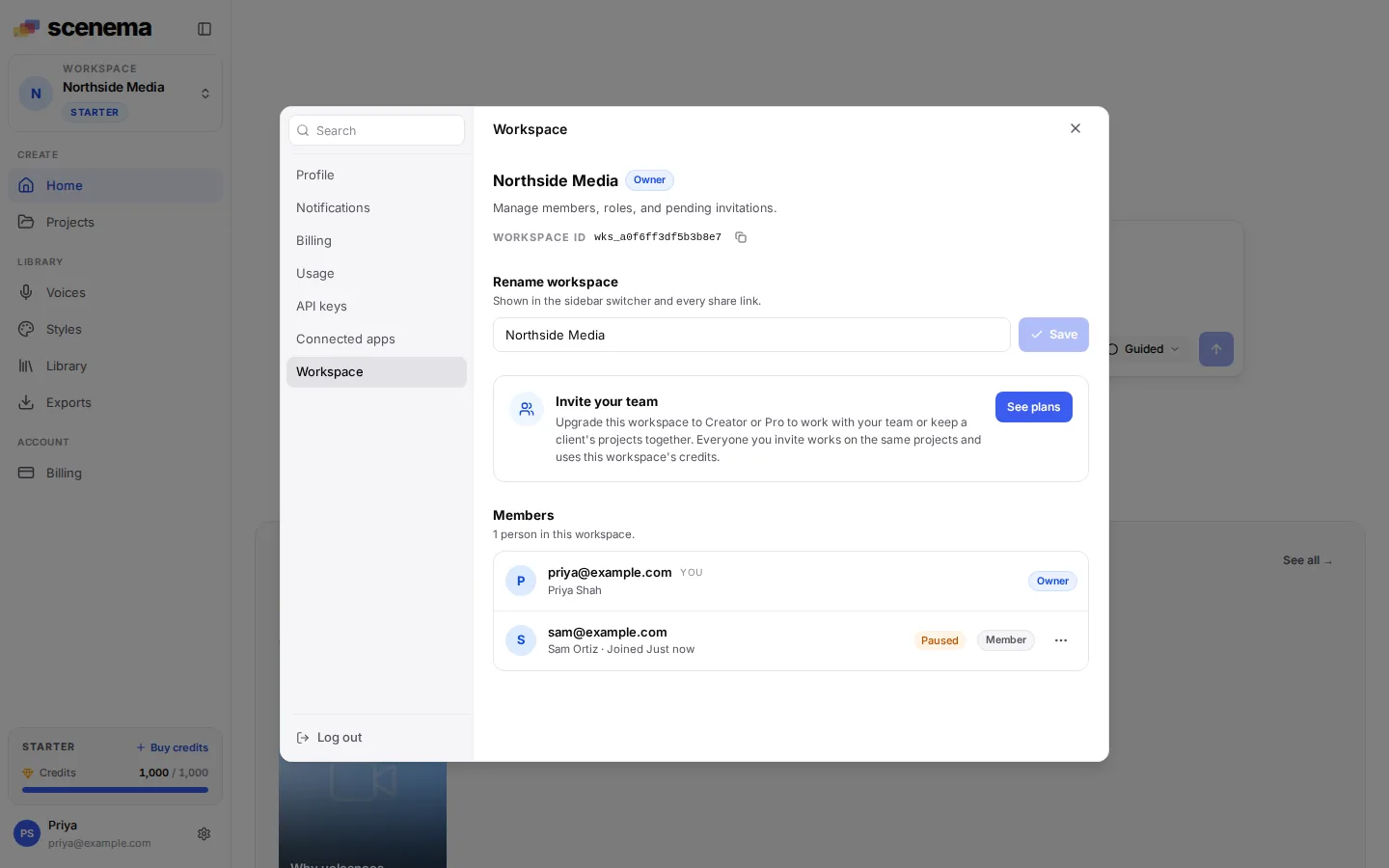
When a plan change takes effect, the team is fitted to the new plan’s seats. The owner and the people who joined first keep their seats; everyone past them is paused. Nothing is deleted:
- A paused member keeps their place and role, but cannot open the workspace or anything in it until they are restored. Scenema emails them when they are paused, and again when they are restored.
- The owner keeps full use of the workspace on every plan.
- Paused members show in Settings, Workspace with a Paused label and do not count toward the seats. An owner or admin can still remove them.
What each change does:
- Creator to Pro adds seats immediately, as an upgrade (see Billing), and restores every paused member.
- Pro to Creator keeps the owner and the first 14 people to join; anyone after them is paused.
- To Starter or Free, including cancelling, pauses everyone except the owner when the lower plan starts, and revokes pending invites. Until then the team works as usual.
- Back up to Creator or Pro restores paused members in the order they joined, as many as the plan has seats for.
The plan change window says how many members will be paused, or how many paused members come back, before you confirm.
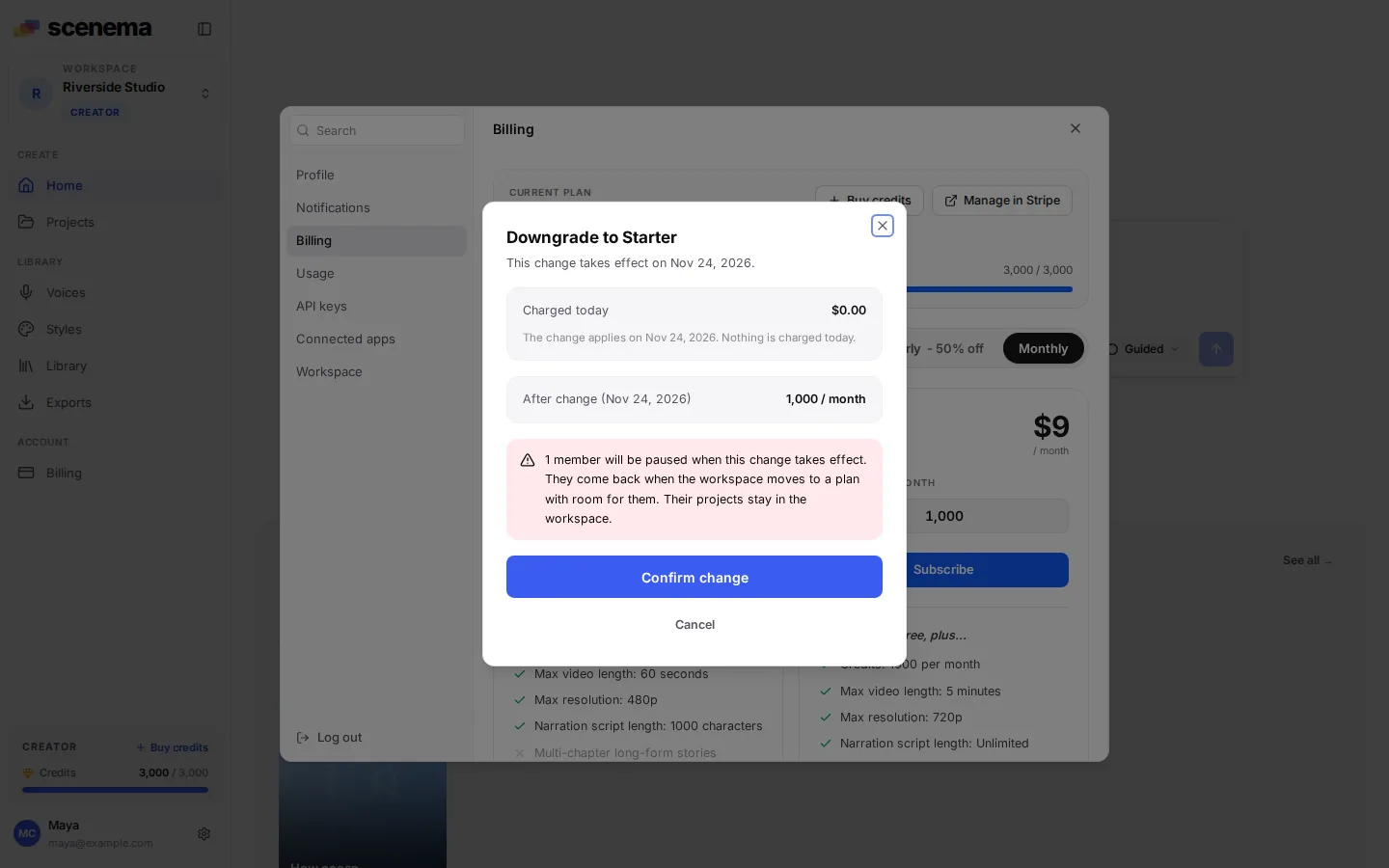
To cancel, choose Cancel plan in Settings, Billing. The confirmation says how many members will be paused when the billing period ends, and you can keep your plan any time before then.
Questions
Who are workspaces for?
Anyone who makes Scenema videos with other people:
- Startup teams writing product explainers, launch videos and onboarding guides together.
- Companies and enterprises where marketing, training and product teams share one library, brand kit and credit pool.
- Agencies and studios that make videos for clients, with a workspace per team and every project in one place.
- Teachers and students working on a classroom project, where the whole group edits the same video.
- Creators with collaborators, such as a writer, an editor and a narrator working on one channel.
If more than one person needs to open, edit or generate in the same project, a team workspace is the way to do it.
Do the people I invite need a paid plan?
No. Anyone can join a team workspace. They use the team workspace’s plan and credits while they work in it.
Can I be in more than one team workspace?
Yes. Accept each invite, and switch between workspaces from the sidebar. Each workspace keeps its own projects, credits and settings.
What happens to a project when the person who made it leaves?
It stays in the workspace, open to everyone still in it.
Can I create another workspace?
Yes, as many as you need. Each new workspace starts on Free and keeps its own projects, credits and plan. Subscribe it to Creator or Pro when you want to invite people into it, for example a separate workspace for each client.
What happens to my team if I downgrade?
Members past the new plan’s seats are paused, never removed. Their projects stay in the workspace, and they come back in the order they joined when the workspace moves to a plan with room for them.