File uploads
Files you attach in Claude, ChatGPT or Cursor stay with that app: they do not reach Scenema. To make a video from your own documents, images or audio, upload them from the chat. Ask the assistant, for example: “I have a product photo and our launch brief to use.” It opens an upload drop zone for a new folder in your Scenema library.
Upload from the chat
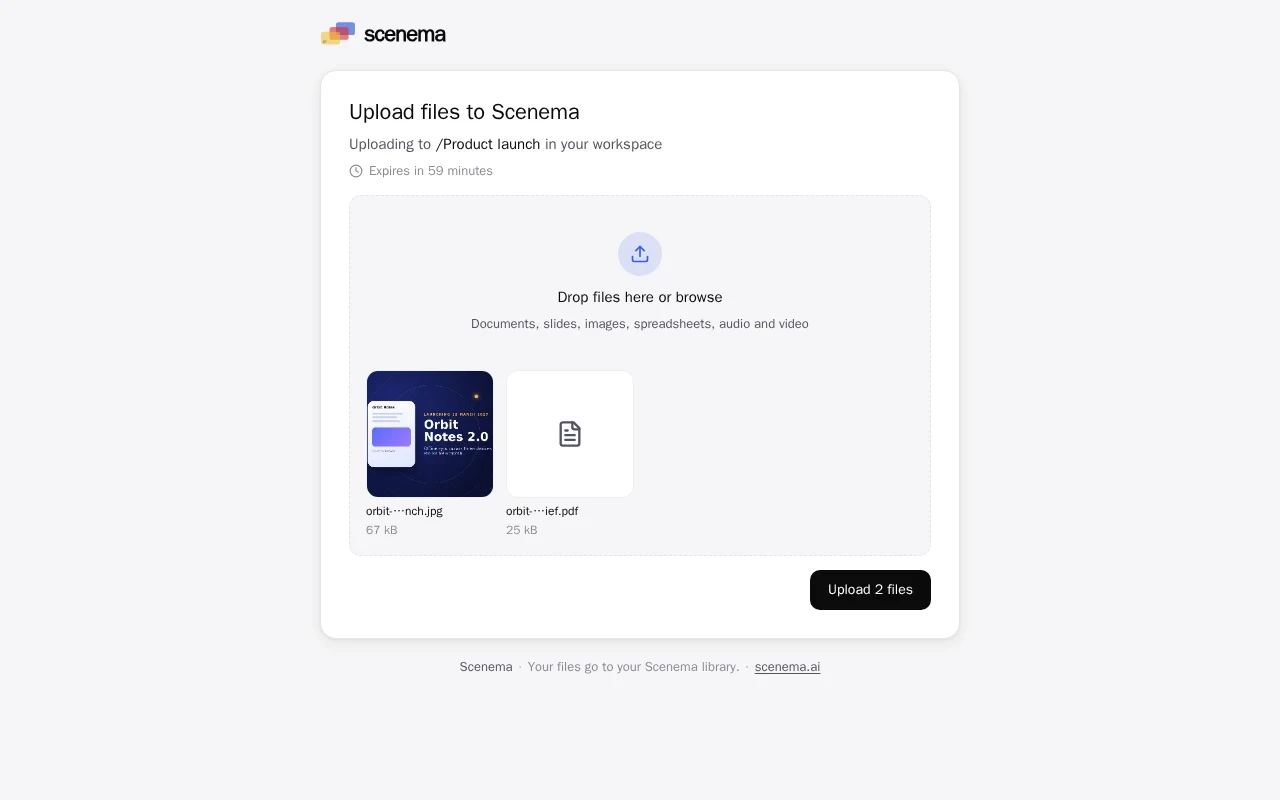
- The drop zone appears in the chat in Claude, ChatGPT and other apps that support MCP Apps. Everywhere else, the assistant gives you a link that opens the same drop zone in your browser, with no sign in.
- Drop your files on it, or click to choose them.
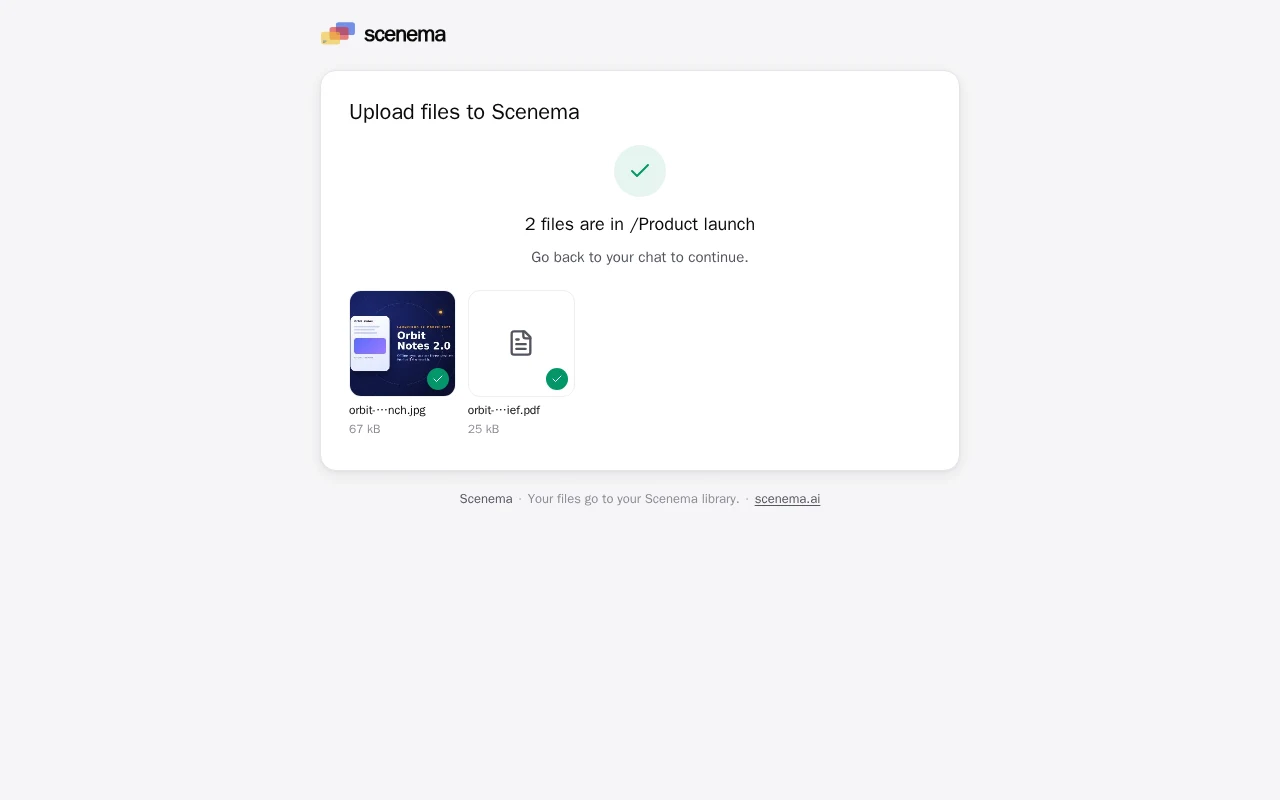
- Choose Upload. When every file shows as uploaded, go back to the chat and say you are done.
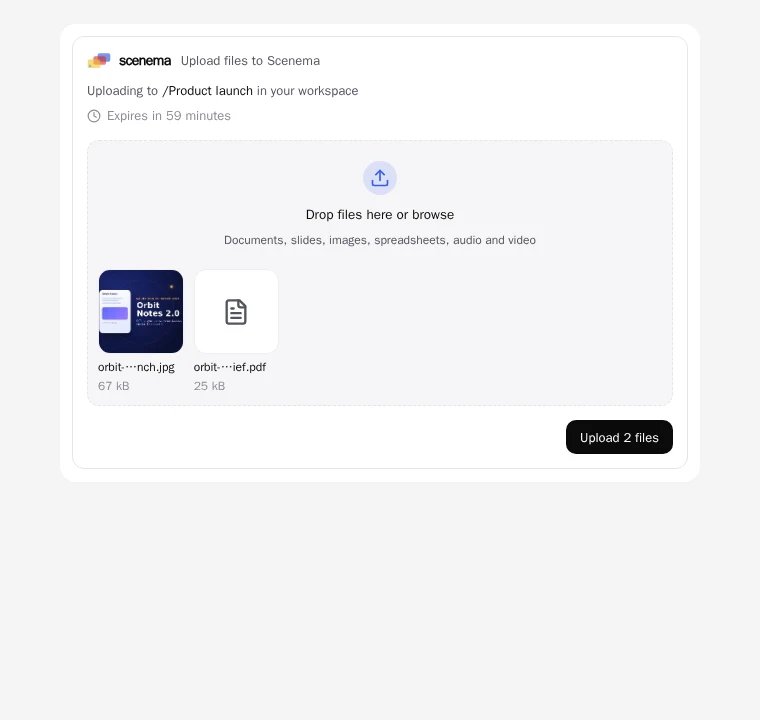
In Claude, ChatGPT and other apps that support MCP Apps, the same drop zone shows right in the chat:
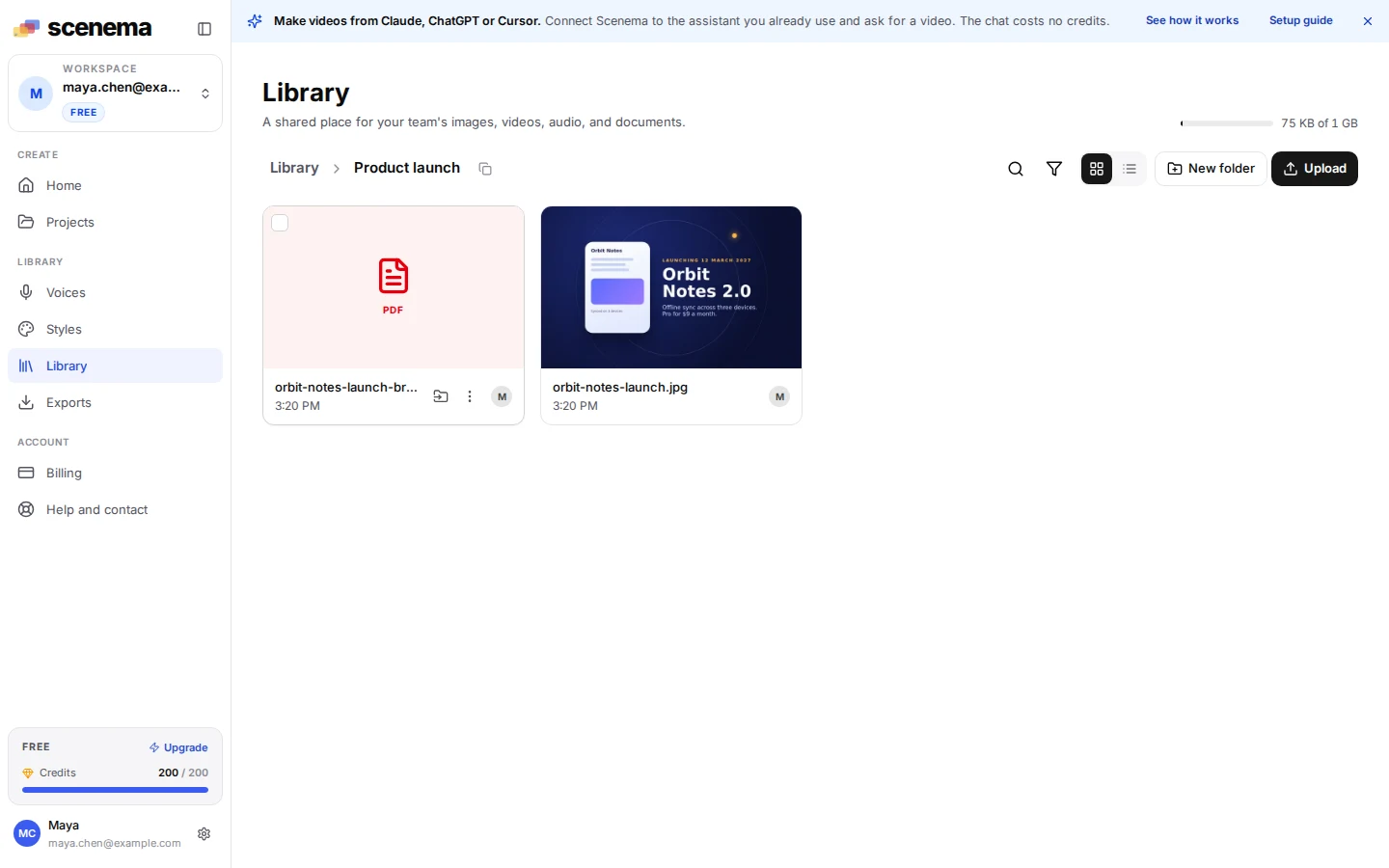
The files land in that folder of your library, the same as uploading on scenema.ai. The assistant lists them and uses each one the way you ask.
What you can upload
- Documents: PDF, Word, PowerPoint, Excel, OpenDocument, RTF, EPUB, plain text, Markdown and CSV.
- Images: PNG, JPEG, WebP, GIF, HEIC, AVIF, BMP and TIFF.
- Audio and video in common formats, for example a recorded voiceover to use as the narration.
- Up to 20 MB per file, and up to 100 files per link.
Uploads count toward your plan’s storage. Scenema reads documents once when the assistant uses them for a video, and reading files costs credits.
How long a link works
A link works for one hour. The drop zone shows how long is left, and once the hour is up it says the link has expired. Files you uploaded before then stay in your library. Ask the assistant for a new link to the same folder.
Files already in your library
On scenema.ai, open Library, choose Copy folder path next to a folder, and name it in the chat: “Use the files in my library folder /Onboarding to make a three minute training video for new hires.”
Troubleshooting
- “This upload link has expired.” Ask the assistant for a new link. Your earlier uploads are saved.
- “… is not a kind of file Scenema reads.” Convert the file to one of the formats above, for example a web page to PDF.
- “… is larger than 20 MB.” Compress the file or split a long document.
- A storage message. Your plan’s storage is full. Remove files from your library or change plan in Settings, Billing.
- “This link has taken 100 files.” Ask the assistant for a new link.
For developers
The upload_files tool takes an optional folderName. It returns the folder (folder.id, folder.path), the link for clients without MCP Apps (uploadUrl) and when the link expires (expiresAt). Files uploaded through it are read with list_files and the folder id. In MCP Apps hosts, the tool’s result renders the drop zone (ui://scenema/upload.html), which posts a message to the chat once the upload finishes.