Storyboard and design models
Every Scenema video starts as a storyboard: the Director reads the script, plans the characters, places and stages, and then designs each shot before any image is generated. The Storyboard and design setting chooses the model that does this work. Five models are on offer, from Claude Opus 5.5, the most careful and the most expensive, to GPT-6 Luna, the lightest and the least expensive.
What the setting does
The chosen model writes the project’s storyboard and designs every shot in it. The chat with the Director stays the same whichever model is chosen, so conversations, questions and edits made in the chat behave identically on every model. Narration, images and video clips have their own models and are unaffected by this setting.
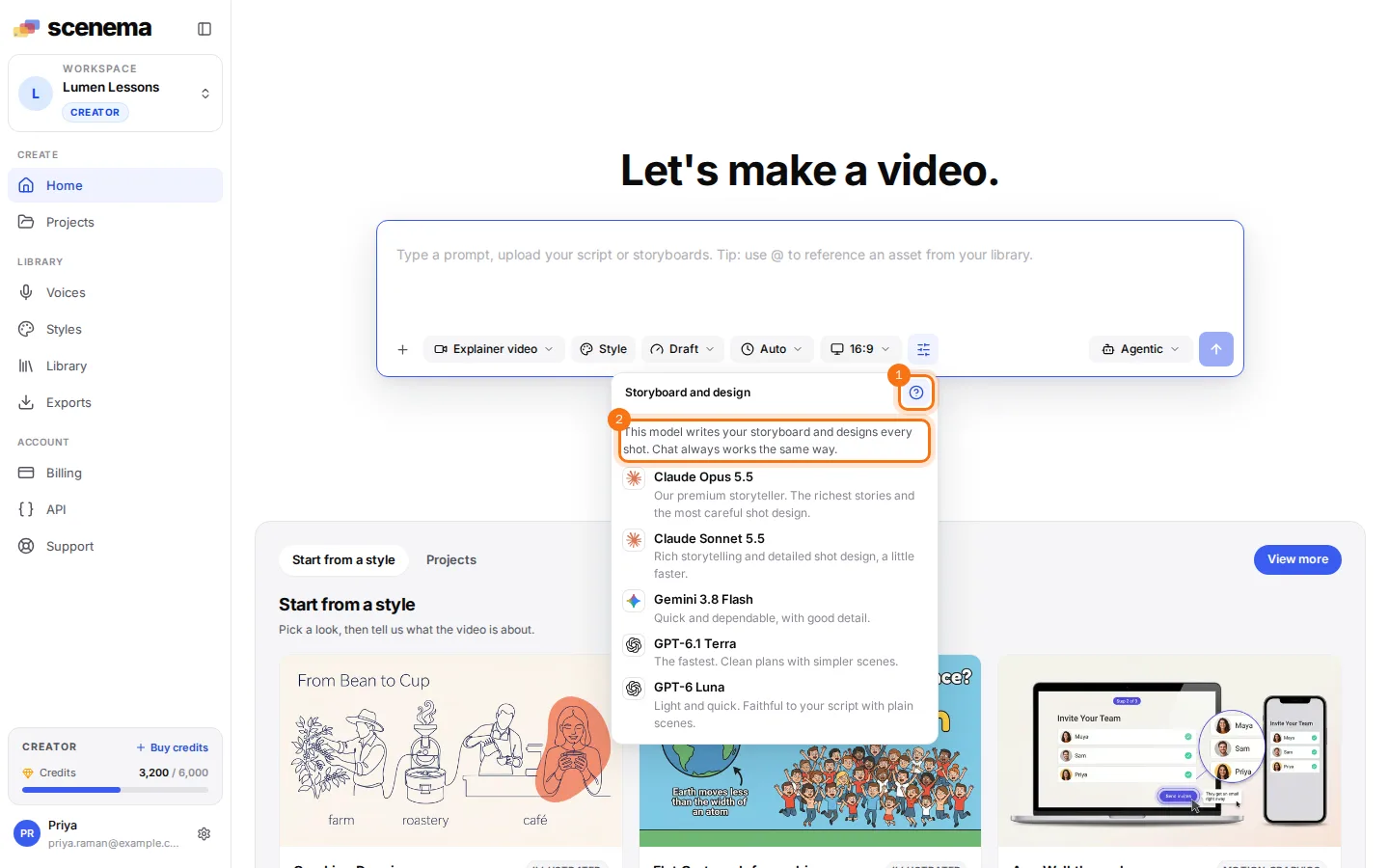
The question icon at the top of the list (highlighted as 1) turns the list into a short guide with one sentence per model. The guide opens with the line highlighted as 2: the model writes the storyboard and designs every shot, and the chat always works the same way. Selecting the icon again returns to the list.
Where to find it
The same list appears in three places, and each shows the model currently in use with a check mark next to it.
On the dashboard
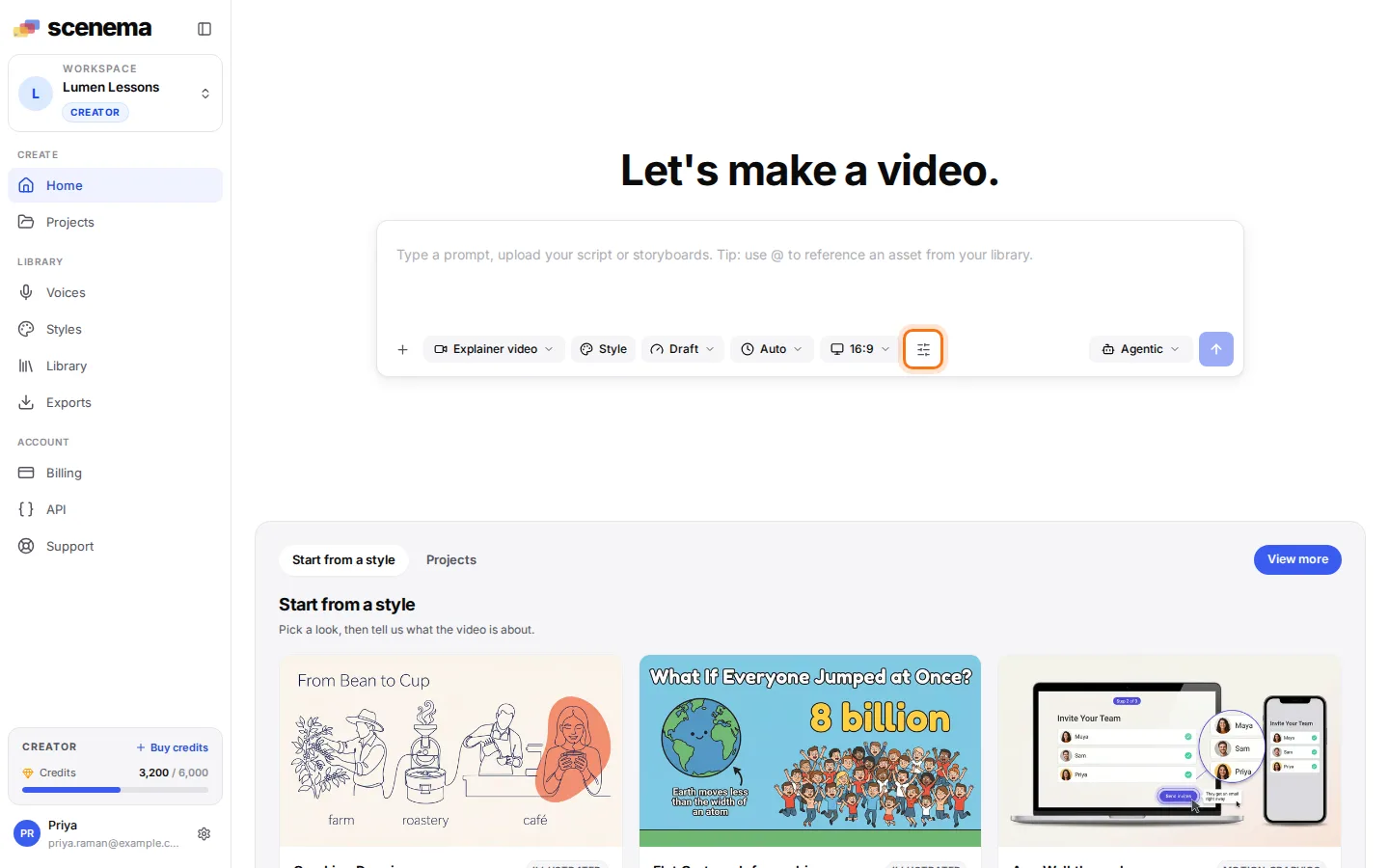
The highlighted sliders button in the composer footer opens the Storyboard and design panel. A model picked there applies to the next project created from the composer.
On a phone
On a phone, the same sliders button opens the Settings sheet. Its Storyboard and design section holds the same list and the same question icon.
In the studio
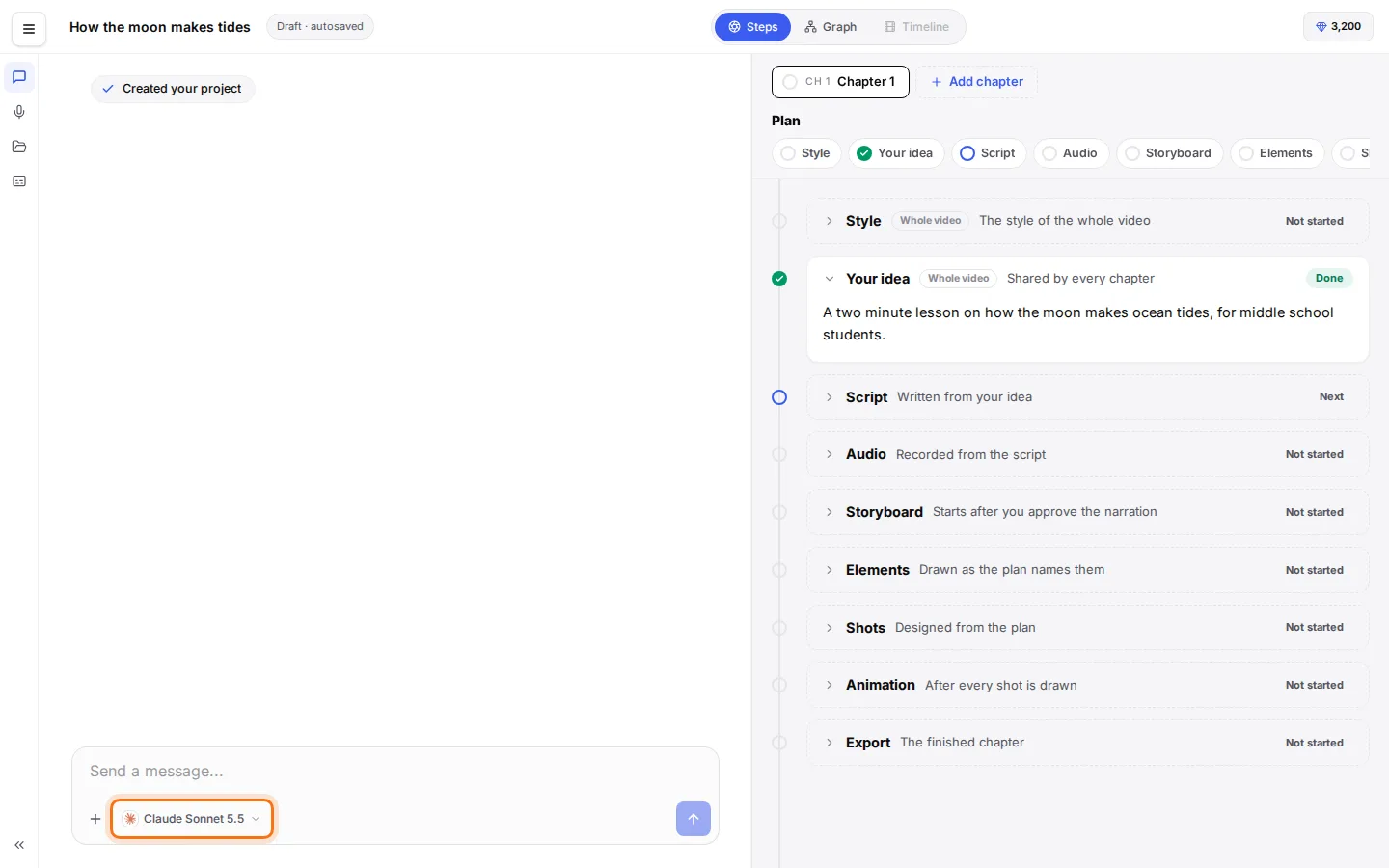
Inside a project, the highlighted chip in the chat’s message box shows the model the project uses. Selecting the chip opens the list above the chat, and a pick there is saved on the project at once.
The models
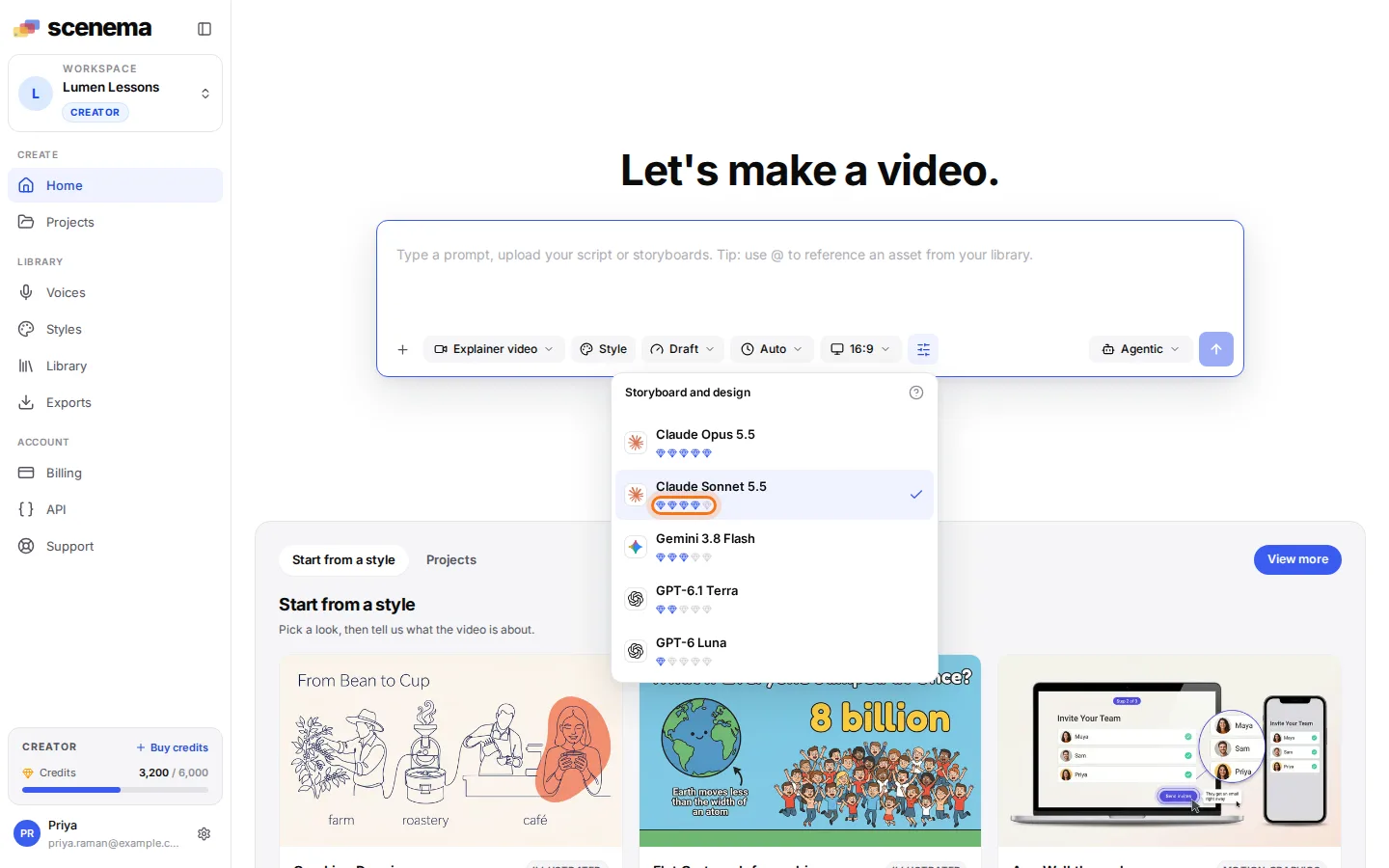
Each row shows the model’s price as diamonds, from one to five. The highlighted diamonds on the Claude Sonnet 5.5 row show four of five. Diamonds compare the models with each other; they are a relative price and carry no exact credit figure.
| Model | Price | Relative speed | Good at | When to use it |
|---|---|---|---|---|
| Claude Opus 5.5 | 5 diamonds | Slowest | The richest, most accurate and most nuanced storytelling, and the most careful shot design | Brand films, documentaries, lessons where every fact must land, and stories with many characters and places. Paid plans only. |
| Claude Sonnet 5.5 | 4 diamonds | Moderate | Rich storytelling and detailed shot design, a little faster than Opus | Most long form explainers. Paid plans only. |
| Gemini 3.8 Flash | 3 diamonds | Fast | Quick and dependable plans with good detail | Tutorials, explainers and product videos. |
| GPT-6.1 Terra | 2 diamonds | Fastest | Clean plans with simpler scenes | Drafts, quick iterations and product walkthroughs, when speed matters most. The default on paid plans. |
| GPT-6 Luna | 1 diamond | Fast | Light and quick plans that stay faithful to the script, with plain scenes | Social media reels and shorts with no complex action. The default on the Free plan. |
A higher price buys more storytelling depth and more careful shot design, and a lower price buys speed and simpler scenes. A video with many characters, places or facts to keep straight benefits most from Claude Opus 5.5 or Claude Sonnet 5.5, while a short reel with one presenter and a plain setting suits GPT-6 Luna.
Defaults on each plan
A project with no pick uses its plan’s default:
| Plan | Default model |
|---|---|
| Free | GPT-6 Luna |
| Starter, Creator and Pro | GPT-6.1 Terra |
A pick replaces the default for that project. Setting default over the API (below) returns a project to the plan’s own choice.
Plan limits
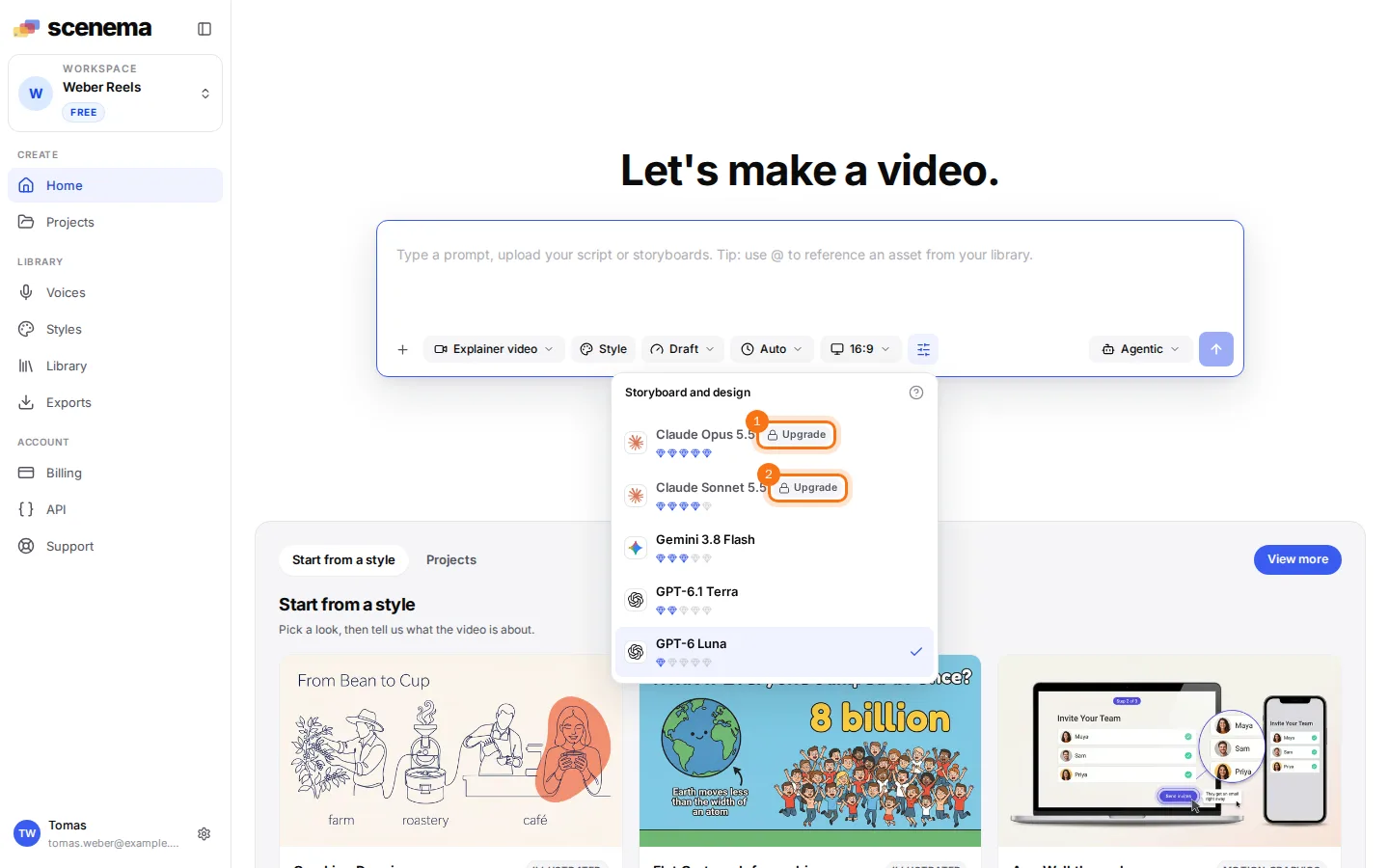
Claude Opus 5.5 and Claude Sonnet 5.5 need a paid plan. On the Free plan both rows are locked, and the highlighted Upgrade buttons next to their names open the upgrade options. Gemini 3.8 Flash, GPT-6.1 Terra and GPT-6 Luna are open on every plan. See Billing for the plans.
When Scenema refuses a pick because the plan does not include the model, it shows the notice “This model is not available on your current plan.” and the project keeps the model it had.
Changing the model later
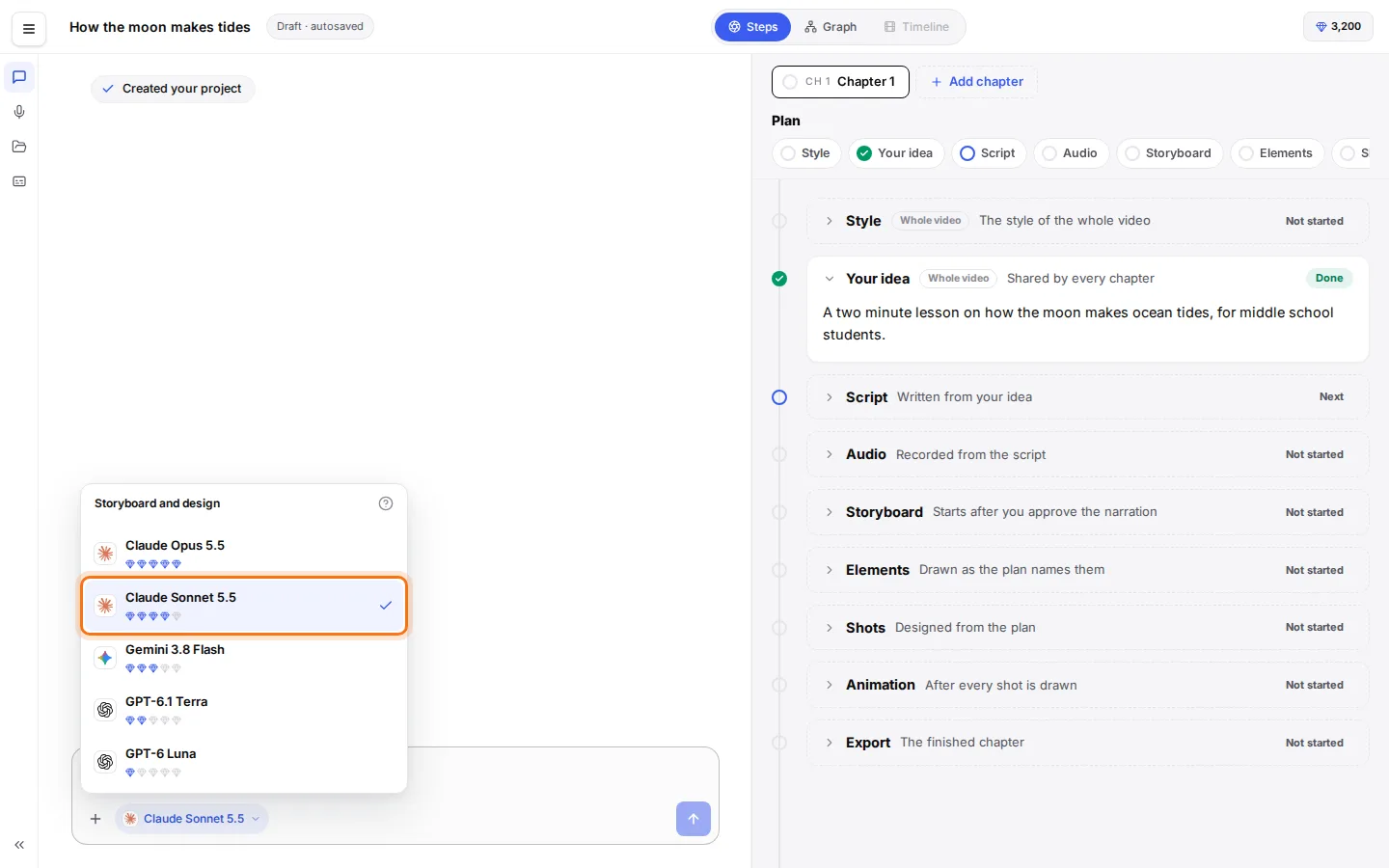
The model can change at any point in a project from the chip in the studio chat. The highlighted row is the model the project uses now. A new pick takes effect on the next storyboard or design run. Finished shots are kept as they are.
Over MCP and the API
Assistants connected to Scenema over MCP set the model with the update_project_settings tool and its planningModel field:
| Value | Model |
|---|---|
default |
The plan’s default (GPT-6 Luna on Free, Claude Sonnet 5.5 on paid plans) |
claude-opus-5.5 |
Claude Opus 5.5 |
claude-sonnet-5.5 |
Claude Sonnet 5.5 |
gemini-3.8-flash |
Gemini 3.8 Flash |
gpt-6.1-terra |
GPT-6.1 Terra |
gpt-6-luna |
GPT-6 Luna |
{ "projectId": "proj_...", "planningModel": "claude-opus-5.5"}On the Free plan, claude-opus-5.5 and claude-sonnet-5.5 answer with upgradeRequired, which carries a message and an upgradeUrl, and the project keeps its current model.