MCP Integration
The Scenema MCP lets the assistant you already use make AI-animated explainer videos in Scenema. Describe the video in Claude, ChatGPT, Cursor or Claude Code, or point to files in your Scenema library, and the assistant uses Scenema to write the script, record the narration, plan and draw the shots, animate them and export the video. Everything it makes lands in your Scenema workspace, so you can open it on scenema.ai at any time. For an overview, see scenema.ai/mcp.
What it costs
Your conversation in Claude, ChatGPT or Cursor costs nothing on Scenema. You pay credits only for the work Scenema does for you: the script, the shot plan, reading your files, and every image, narration and clip. The credits come from the same workspace balance you use on scenema.ai, and every charge shows in Settings, Usage.
A full video uses far more credits than a single image, so ask your assistant for your balance, or what a step will cost, before a long run. Whatever your assistant charges for its own conversation is between you and that app. See Billing for plans and credits.
What your assistant can do
- Start from an idea or your files. Give a topic, paste notes into the chat, or upload PDFs, slides, images and spreadsheets right from the chat (see File uploads).
- Get the script written. Scenema drafts the narration and revises it when you ask, or keeps your own script word for word.
- Pick a voice and record it. Choose a narrator from the voice library, in more than 75 languages, or a voice you cloned on scenema.ai.
- Use your own audio. Upload a recorded voiceover to your library, name it in the chat, and Scenema builds the video around it.
- Choose a look. Pick a style from the Scenema catalog or one of your own, or describe the look and let Scenema find a match.
- Plan the shots. Scenema lays out every shot to match the narration, with the same characters and places throughout.
- Draw and animate. Each shot becomes an image in your style, then a moving clip at the quality you choose.
- Change any shot. Ask for a new angle, a different image or a fresh take on one moment; only that shot is redone.
- Check progress. Ask what is done, what is running and what comes next.
- Export the video. Get the finished MP4 when the shots are ready. In Claude, ChatGPT and other apps that support MCP Apps, the video plays right in the chat with a Download button, and images show as a gallery.
- See your credits. Check your plan and balance from the chat.
Creating custom styles and cloning voices happen on scenema.ai. Once made, your assistant can use them.
Connect your app
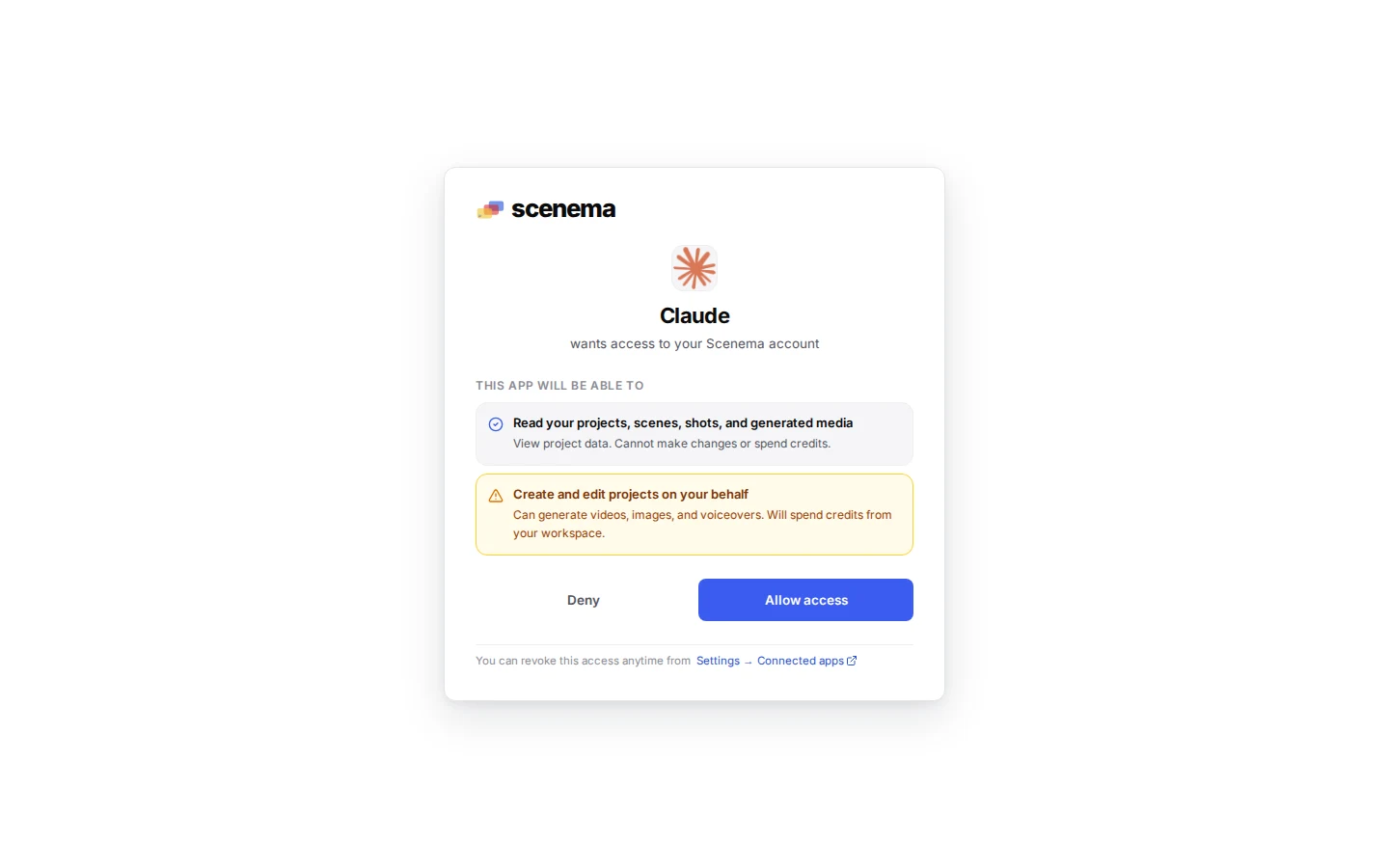
Apps sign in with your Scenema account (OAuth): a browser window opens, you sign in to Scenema with Google or Discord and click Allow access. There is no key to copy. Developer tools can also use a personal API key instead.
Add Scenema to Claude
Opens the Claude desktop app. If nothing happens, follow the steps below.- In Claude (desktop or claude.ai), open Settings, then Connectors, then Add custom connector.
- Name it Scenema and paste
https://mcp.scenema.ai/mcp. - Sign in to Scenema in the browser window that opens and click Allow access.
- In a new chat, ask Claude to make a video. Claude lists Scenema’s actions the first time it uses them; allow them once or for the whole chat.
Custom connectors depend on your Claude plan; Claude’s own help pages list which plans have them.
Add Scenema to ChatGPT
Opens the ChatGPT connectors panel. If the fields are empty, follow the steps below.- In ChatGPT, open Settings, then Connectors, then Create.
- Name it Scenema, paste
https://mcp.scenema.ai/mcpand pick OAuth. - Sign in to Scenema in the browser window that opens and click Allow access.
- In a chat, pick Scenema in the tools menu and ask for a video.
Connectors depend on your ChatGPT plan and workspace settings; ChatGPT’s help pages list which plans have them.
Add the server once, then sign in from any session:
claude mcp add --transport http scenema https://mcp.scenema.ai/mcpStart claude, run /mcp, pick scenema and sign in in the browser. To use an API key instead (for scripts and CI), create one in Settings, API keys and add it as a header:
claude mcp add --transport http scenema https://mcp.scenema.ai/mcp \ --header "Authorization: Bearer sk_your_key_here"Add Scenema to Cursor
Opens Cursor with Scenema filled in. If nothing happens, add the config below.Or add it in Cursor Settings, MCP:
{ "mcpServers": { "scenema": { "url": "https://mcp.scenema.ai/mcp" } }}Cursor asks you to sign in to Scenema the first time it connects. To use an API key instead, add "headers": { "Authorization": "Bearer sk_your_key_here" } next to url.
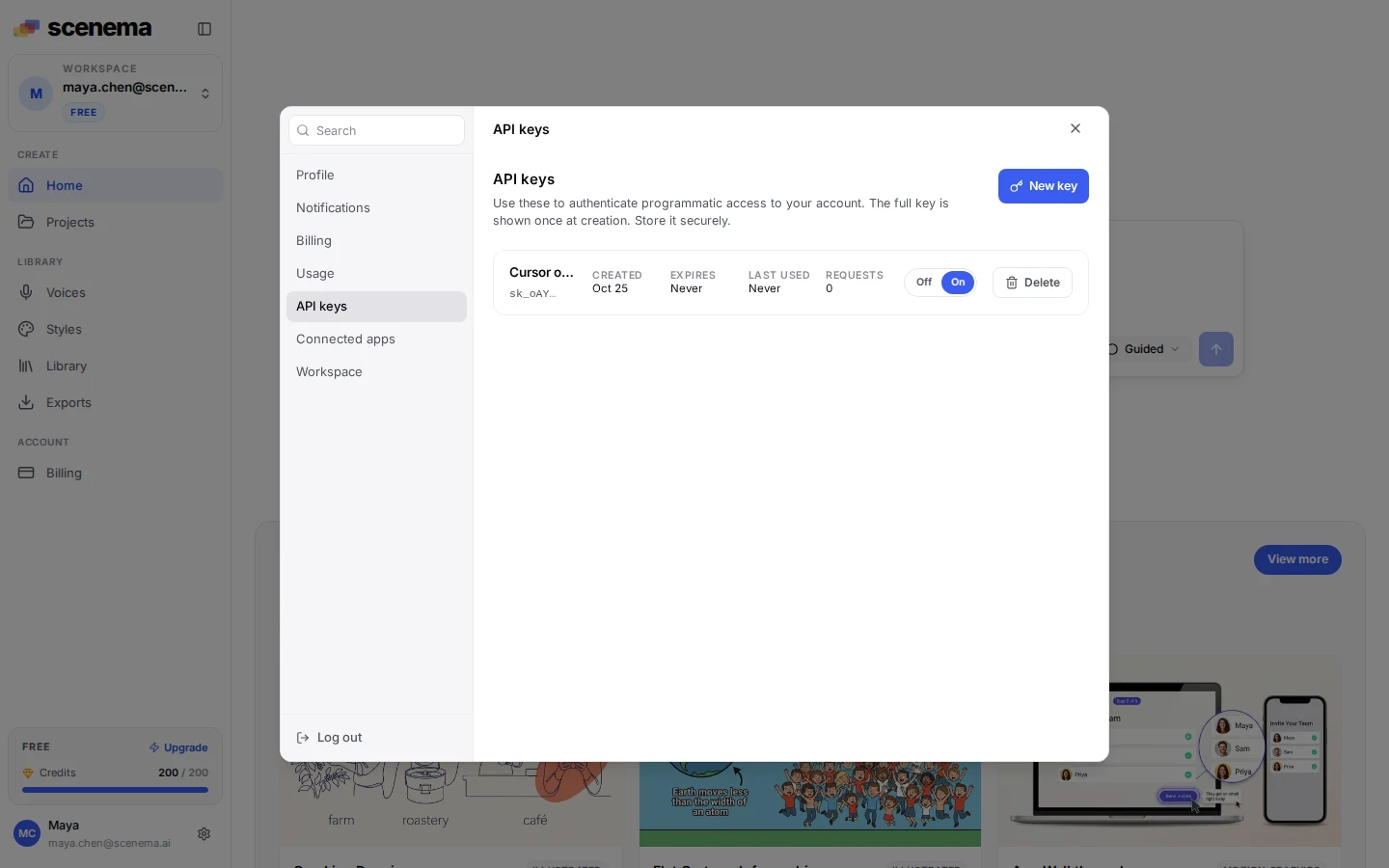
Any app that supports remote MCP servers (Streamable HTTP) with OAuth works: add a server with https://mcp.scenema.ai/mcp and sign in when the app asks. Apps without OAuth can send a personal API key as Authorization: Bearer sk_.... Create keys in Settings, API keys; see Managing API Keys.
Narration
To make narration only, a script read by a Scenema voice with no video, connect to https://mcp.scenema.ai/audio. It uses the same Scenema account, sign in and credits, and carries only the narration actions:
- Start a narration. Every project made here is a narration project, and it opens in the Scenema studio like any other.
- Save the script. Paste your script and Scenema keeps it word for word.
- Find a voice. Search the voice library by what the voice is for, in more than 75 languages, or use a voice you cloned on scenema.ai.
- Change the voice at any time. Set a new voice, language or delivery, and record again.
- Record and check progress. Get the finished audio, its link and duration, and your credit balance.
Your assistant loads only these actions, so the conversation stays small and focused. The same work over HTTP is the Narration API.
Connect it as in Connect your app, with https://mcp.scenema.ai/audio as the URL. Some shortcuts:
Add Scenema narration to Claude
Opens the Claude desktop app. In ChatGPT and other apps, add a connector with the URL above.In Claude Code:
claude mcp add --transport http scenema-audio https://mcp.scenema.ai/audioIn Cursor:
Add Scenema narration to Cursor
Opens Cursor with Scenema narration filled in.Things to try:
- “Record this script in a warm, calm British voice: …”
- “Find me three energetic voices for a podcast intro in Spanish.”
- “Use a deeper voice and record it again.”
You can connect both: /mcp for videos and /audio for narration.
Using your files
Files you attach in Claude, ChatGPT or Cursor stay with that app: they do not reach Scenema. Ask the assistant to let you upload them instead. It opens an upload drop zone for a folder in your Scenema library, right in the chat or as a link that opens in your browser. See File uploads.
Two things can go straight into the chat: text you paste (an outline, a script, notes) and YouTube links of videos you want yours to be like.
First things to try
- “Make a one minute explainer on how a heat pump keeps a house warm, in a whiteboard style.”
- “Use the files in my library folder /Onboarding to make a three minute training video for new hires.”
- “Narrate it in Spanish with a calm voice.”
- “Redo shot four with a wider view.”
- “How far along is my video, and how many credits do I have left?”
A good first run: a one minute video on a topic you know well, in a style from the catalog. Then ask for one shot to change and watch only that shot update.
Examples
A short explainer from an idea. “Make a 30 second explainer on why the sky is blue, for kids, in a whiteboard style.”
The assistant creates the project (create_project), writes the script (generate_voiceover_prompt), finds a narrator (list_voice_actors) and records the narration (generate_voiceover_audio). It lets you listen to the narration and asks you to approve it: once you say so, it approves it for you (approve_narration), and from then on the script is final. It picks the style (search_styles), tells you the price (get_project_pricing) and, once you agree, plans and draws the storyboard (plan_graph), animates the shots (animate_shot) and exports the video (export_video). The finished video plays in the chat with a download link and a link to the project in Scenema (get_exported_video). For a video without sound, or one you add your own sound to later, say so: the assistant still records a narration to time the shots and exports the video without audio (muted on update_chapter or export_video).
Shots are animated in story order. A shot is animated once the shot before it has its clip or is being animated, so the assistant animates a chapter from its first shot on. Asked for a later shot alone, it is told which shot comes first.
A video from your own files. “Use the files in my library folder /Product launch to make a 60 second launch video.”
The assistant reads the folder (list_files), saves what the video should take from each file (analyze_files) and goes through it with you (get_source_analysis). The script, the storyboard and the shots then follow the facts and images in your files, the same way as above.
The same video in another language. “Now make it in Spanish.” After you approved the narration, its script is final, so the assistant translates it (translate_chapter), shows you the translation, fixes small things you point out (update_translation) and records it (generate_voiceover_audio). Every shot, image and clip stays; the Spanish narration is fitted to them, and the approved narration stays as a take of its own. A chapter can have up to 10 translations. To use different words, start a new project.
A video from your own long narration. “Here is my 12 minute course narration, make a video from it.”
Once you upload the file to your library, the assistant sets it as the chapter’s audio (set_audio). A narration longer than 5 minutes is split into chapters of at most 5 minutes: at the chapter markers in the file, or where its topics turn, always at the end of a sentence. Each chapter gets its own part of the audio with its transcript, and the parts land in your library in a folder named for the project as chapter_1.mp3, chapter_2.mp3 and so on. The assistant tells you where each chapter starts and ends, and you can listen to each one in its chapter in the studio, or ask for it in the chat (get_chapter returns its audio link and transcript). The chapters are then made one at a time, and the full export plays them back to back.
A narration only, on the narration connection. “Record a 20 second welcome message for my bakery’s phone line, warm and friendly.”
On https://mcp.scenema.ai/audio the assistant creates a narration project (create_project), saves the script you agree on (set_script), lets you pick a voice (list_voice_actors, update_chapter) and records it (generate_voiceover_audio). Once the take is ready (get_job_status), the assistant gives you the audio link (get_project_manifest).
Your account and your data
- The workspace you have open. The assistant works in the workspace you have open in Scenema, with its projects, files and credits, and nothing else. To make videos in another workspace, switch to it in the Scenema sidebar. A team workspace’s members see what you make there, as on scenema.ai.
- Same projects everywhere. Projects made from the chat appear on scenema.ai, and changes you make there are what the assistant sees next.
- What the app receives. Your projects, files and account as the tools return them. About you it gets your first name only, never your last name or email.
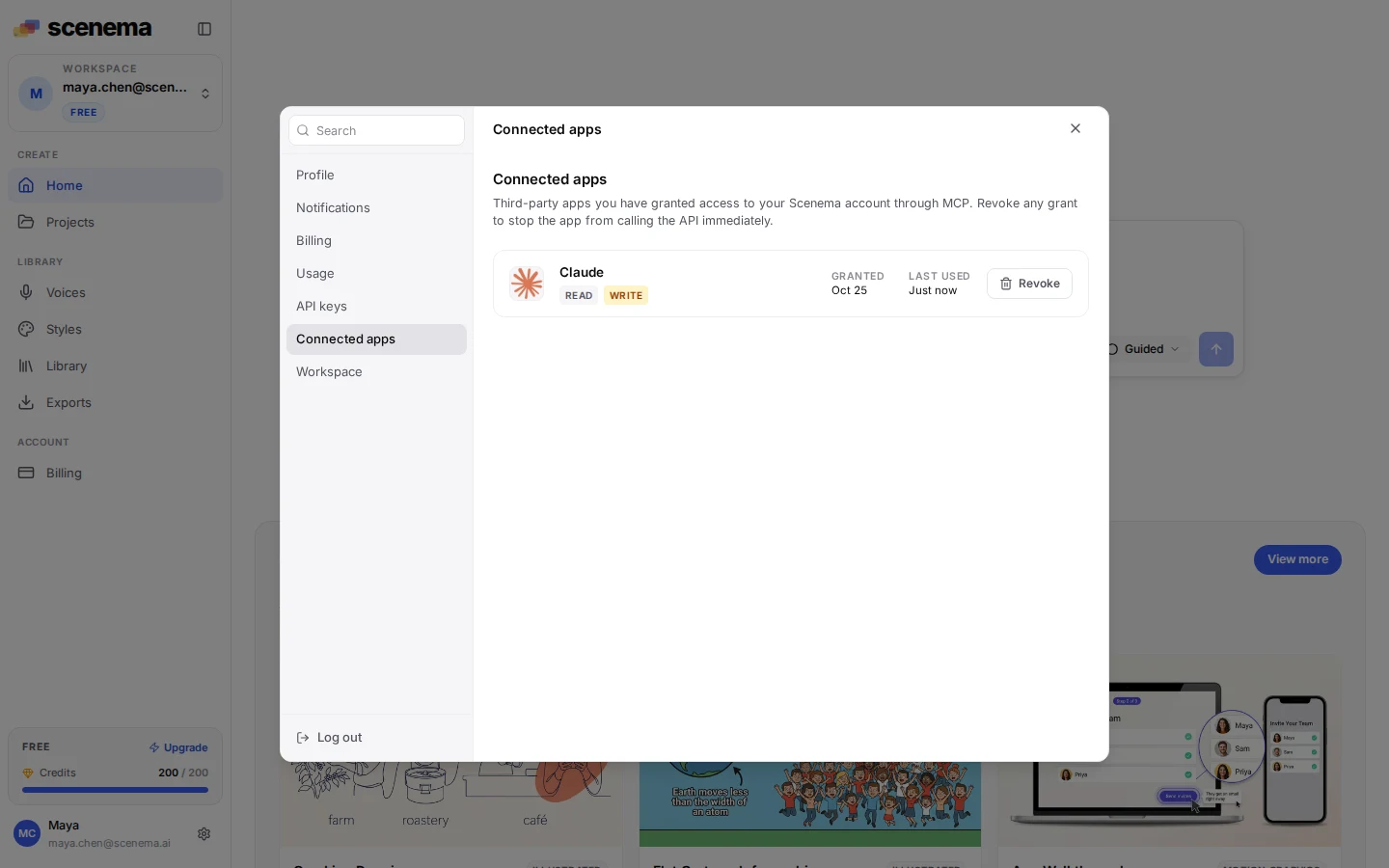
- Disconnect any time. Remove the app in Scenema under Settings, Connected apps; its access stops within seconds, and the app asks you to connect again on its next call.
- What Scenema receives. Only what the app sends to Scenema’s tools: your brief, scripts and settings, the files you upload through a Scenema link, and a one sentence note per action that your project’s chat shows. Scenema never sees your conversations in the app, its memory or the files you attach there. See the privacy policy.
Troubleshooting
- The app does not show Scenema’s actions. Start a new chat after connecting, check the connector is turned on for the chat, and in Claude Code run
/mcpto see its state. - “Unauthorized” or the app asks to sign in again. The connection was removed or expired after a long pause. Connect again from the app; your projects are untouched.
- “Out of credits”. Scenema stops paid steps until credits are added; reading your projects and your balance still works. Add credits or change plan in Settings, Billing, and the steps that were waiting carry on.
- A long video seems stuck. Drawing and animating take time. Ask the assistant for the progress of the project, or open it on scenema.ai to see each shot.
- Too many requests. Connected apps share 240 requests a minute per workspace; API keys follow your plan’s limit (see Rate Limits).
- Signing in works, then the connection times out. Security software on your computer or network may be in the way. See Antivirus and company networks.
Antivirus and company networks
Some security software reads secure web traffic on its way to your computer, and that can break the connection to Scenema. You might see the sign-in work and then the app time out while connecting, or Scenema’s actions never appear.
- Antivirus with web protection. We have seen this with Norton 360’s Web/Mail Shield. Add
mcp.scenema.aiandscenema.aito its exclusions, then connect again. - Company networks. Zscaler, Netskope, a company proxy or a VPN can do the same. Ask your IT team to exclude
mcp.scenema.aiandscenema.aifrom TLS inspection, and to allow long-lived streaming responses frommcp.scenema.ai. - Still stuck? Tell us on Discord, at support@scenema.ai or through the contact page which app you connect from and which security software you use. We use these reports to make the connection work without exclusions.
For developers
- Endpoints:
https://mcp.scenema.ai/mcp(every tool) andhttps://mcp.scenema.ai/audio(the narration tools only:create_project, which always makes an audio project,set_script,list_voice_actors,get_custom_voices,update_chapter,generate_voiceover_audio,get_project_manifest,get_job_statusandget_account). Streamable HTTP transport. - OAuth discovery: protected resource metadata (RFC 9728) at
/.well-known/oauth-protected-resourcefor/mcpand/.well-known/oauth-protected-resource/audiofor/audio; a 401 names the right one inWWW-Authenticate. - Auth: OAuth 2.1 with PKCE (S256), and Dynamic Client Registration (RFC 7591), so clients register themselves on first connect. Every authorization shows the consent screen. Access tokens last 60 minutes; refresh tokens rotate on use. A token is bound to the endpoint named in its
resourceparameter (RFC 8707), and an invalid or expired token gets HTTP 401 so the client refreshes it. Personal API keys (Authorization: Bearer sk_...) work everywhere. - Scopes: the OpenID scopes (
openid,profile,email,offline_access); a token acts as you in the workspace you have open. Personal API keys have full access. - Tool annotations: every tool has a title and
readOnlyHint,destructiveHintandopenWorldHint, so clients run reads freely and ask before anything that changes your work or spends credits. - Tools: call
tools/listfor the current catalog. Every tool returns a structured result: what was created or changed, what became out of date as a side effect, whether the work is finished, and a summary for the assistant. - Short reads:
get_project_manifest,get_chapterandget_scene_graphtakedetail: "brief", which keeps every id, title, status, link and count and leaves out the keyframe and video prompts, the shot designs and the timed transcript. A long project’s full manifest can run to hundreds of thousands of characters, so read it brief and read one shot in full when you need its words. Withoutdetailthey return everything.
A minimal client with the official TypeScript SDK and an API key:
import { Client } from '@modelcontextprotocol/sdk/client/index.js';import { StreamableHTTPClientTransport } from '@modelcontextprotocol/sdk/client/streamableHttp.js';
const client = new Client({ name: 'my-app', version: '1.0.0' });await client.connect(new StreamableHTTPClientTransport(new URL('https://mcp.scenema.ai/mcp'), {  requestInit: { headers: { Authorization: `Bearer ${process.env.SCENEMA_API_KEY}` } },}));
const { tools } = await client.listTools();console.log(tools.map((t) => t.name));await client.close();