Create a custom style
A custom style is a look of your own that Scenema draws every shot in: the line, colour, texture, lighting and motion of the references you give it. Scenema reads your references, names the style, and draws a model sheet of it (the same set of people, places and objects every Scenema style is shown on) plus a preview image. From then on the style appears next to the Scenema styles in every project of your workspace, and the Director designs each shot in it.
A style describes how things are drawn. What a shot shows still comes from your narration, so a style made from autumn scenes renders a spring campus as readily as an autumn one.
Start a style
Open Styles in the sidebar and click the highlighted Create style button. The same button sits on the My styles tab.
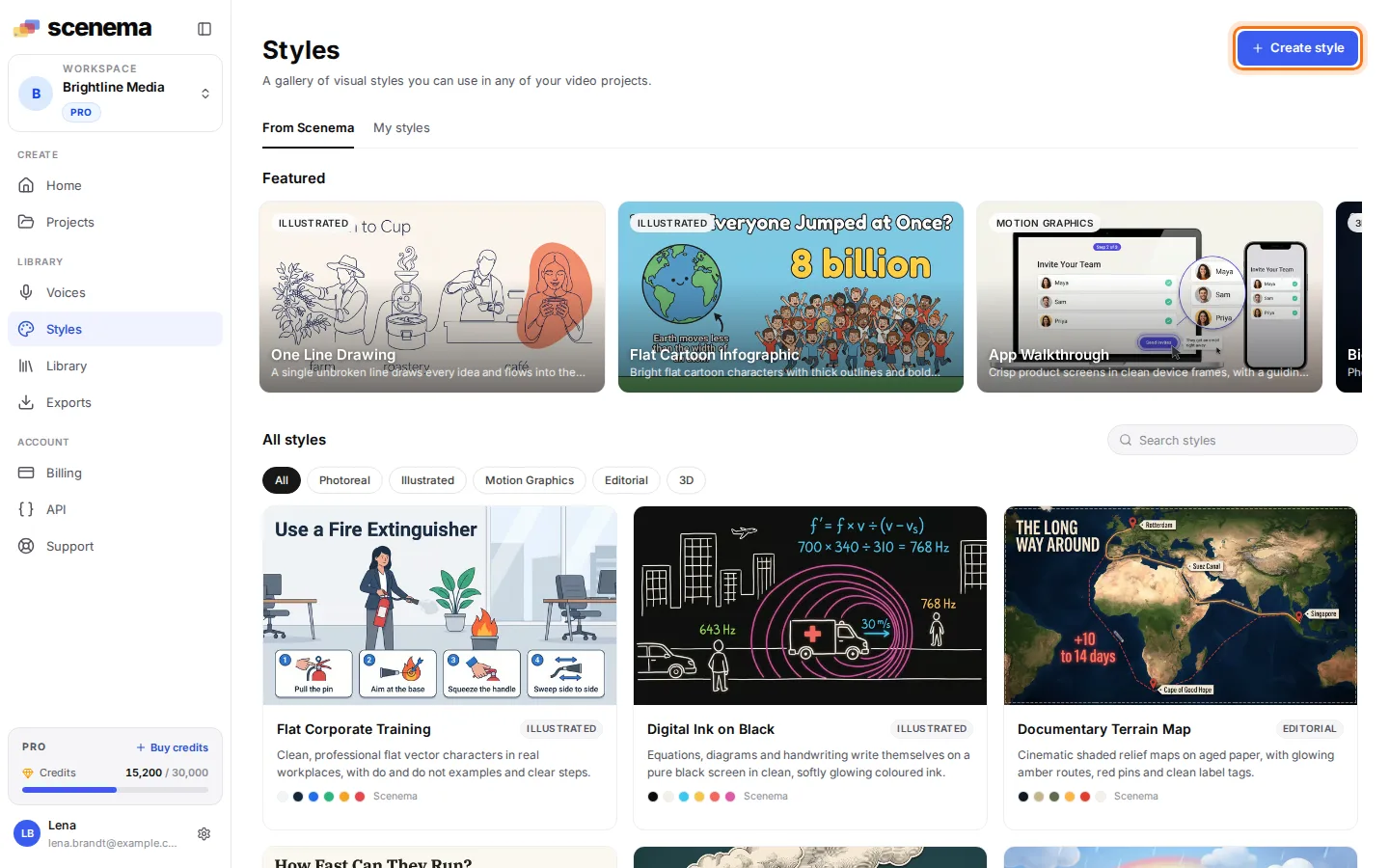
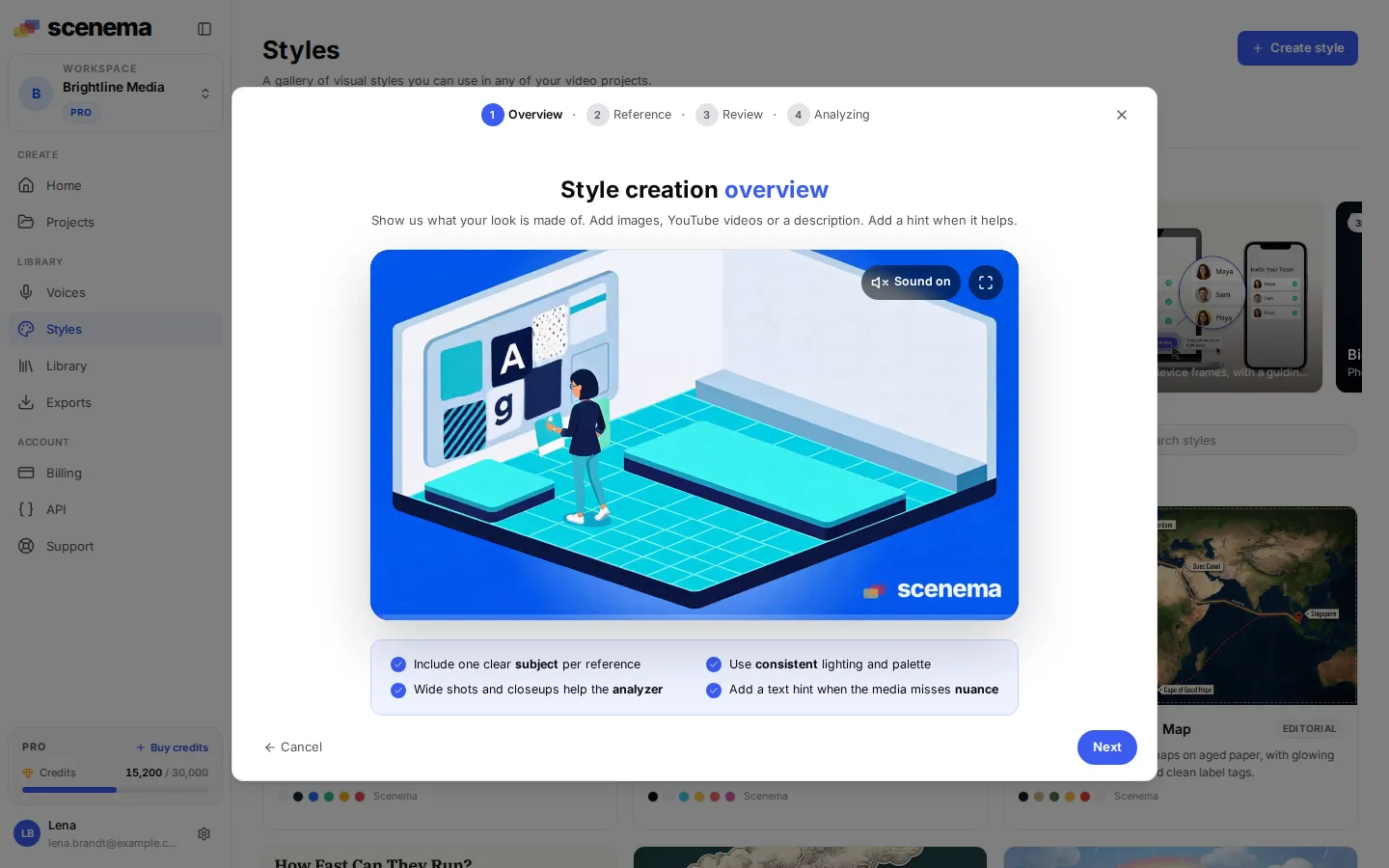
The first step plays a one minute explainer of custom styles (muted at first; Sound on in its corner plays it with narration from the start) and sums up what makes good references: one clear subject per image, consistent lighting and palette, and a mix of wide shots and close ups. Click Next when you are ready.
Choose your references
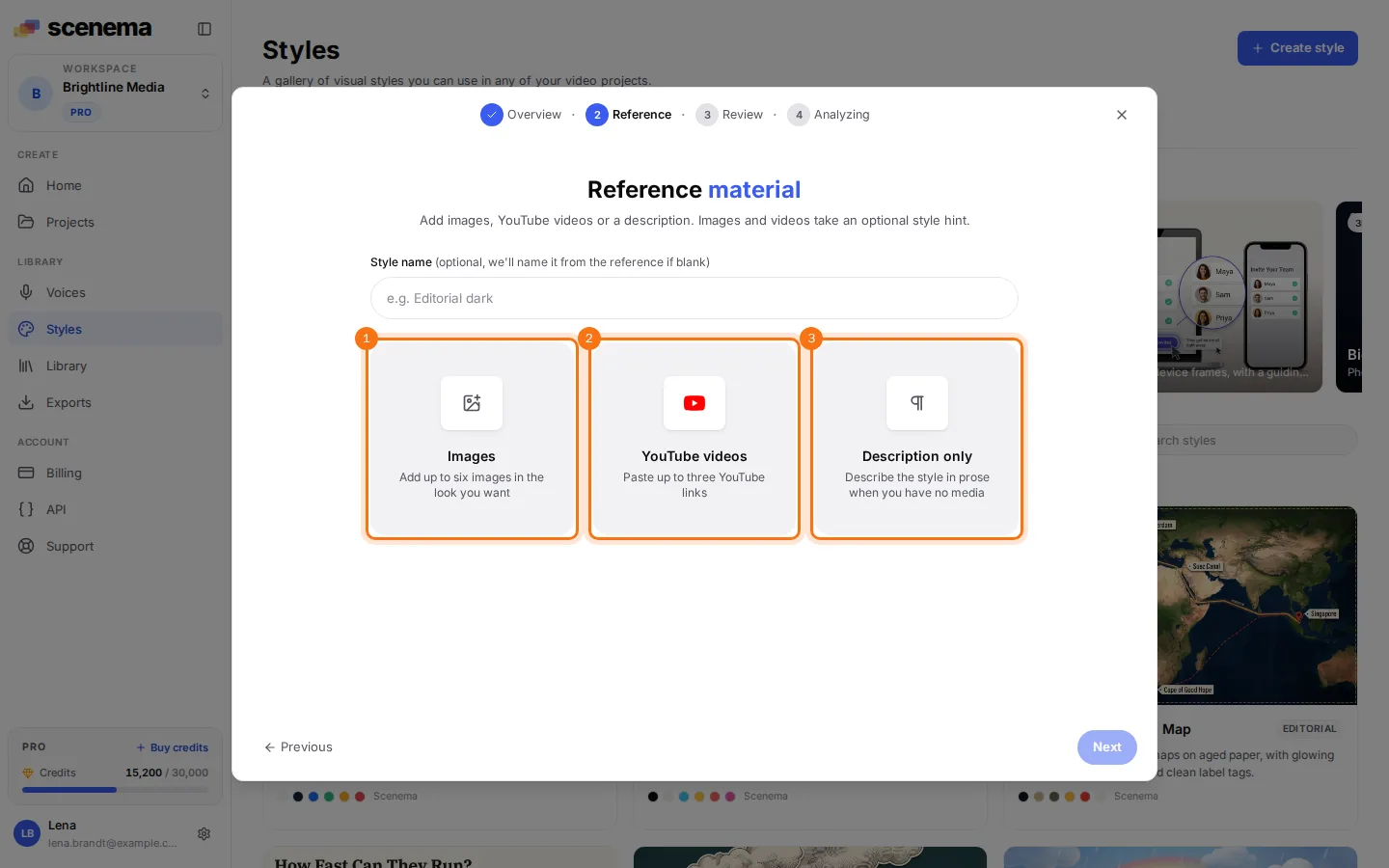
A style can start from three kinds of reference, numbered in the picture:
- Images: up to six images in the look you want.
- YouTube videos: up to three YouTube links of videos in that look.
- Description only: a few sentences describing the style, for when there is no media.
The Style name field is optional. Leave it empty and Scenema names the style after its look. Images and videos also take an optional Style hint, a sentence about what matters most to you, such as “keep the paper texture” or “flat colours, no gradients”.
From YouTube videos
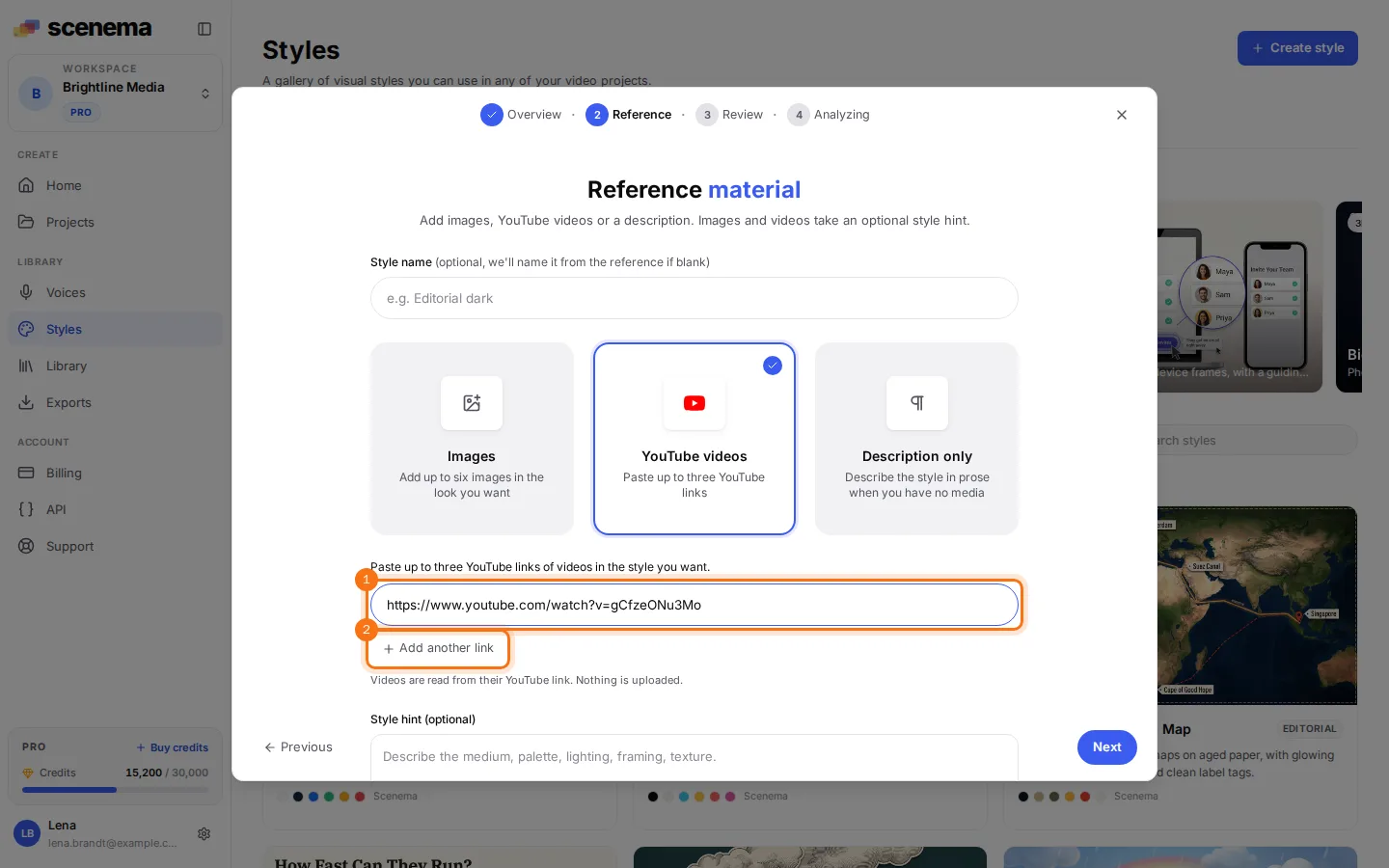
Paste the link of a video whose look you want, and add up to two more with Add another link (highlighted). Scenema watches the video on YouTube from its link; nothing is uploaded or downloaded. Links to other sites are refused with a short message under the field.
Pick videos whose look is consistent from start to finish. A video that mixes live footage and animation, or changes style halfway, gives a muddier style than one that holds a single look.
From images
Drop images on the highlighted area or click it to browse. PNG, JPG and WEBP work, up to six images. Each one shows as a tile you can remove with its close button.
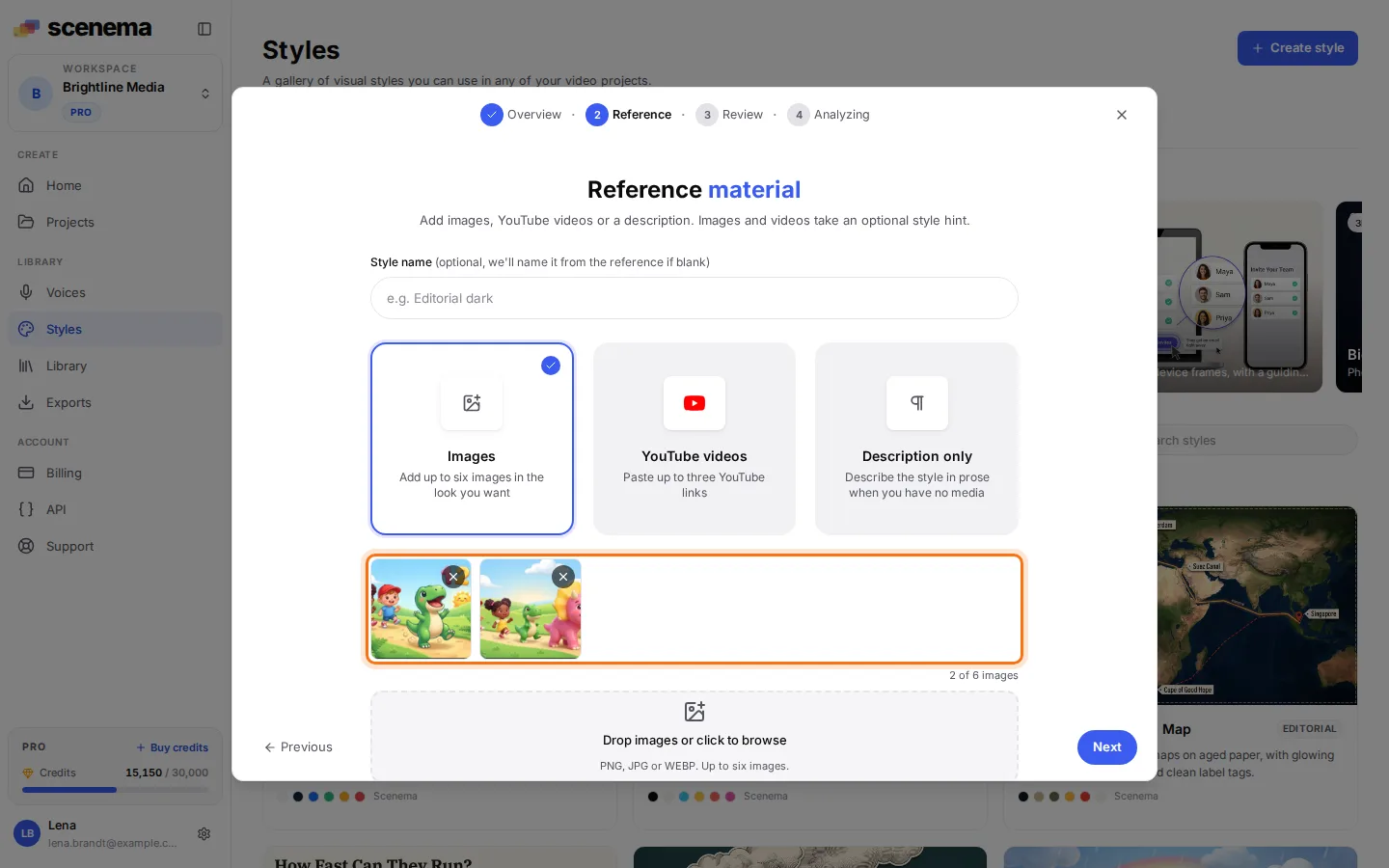
Several images of the same style teach it better than one: Scenema keeps what they share and drops what only one of them shows.
Review and create
The review step lists what the style is made from. Check it and click Create style (highlighted).
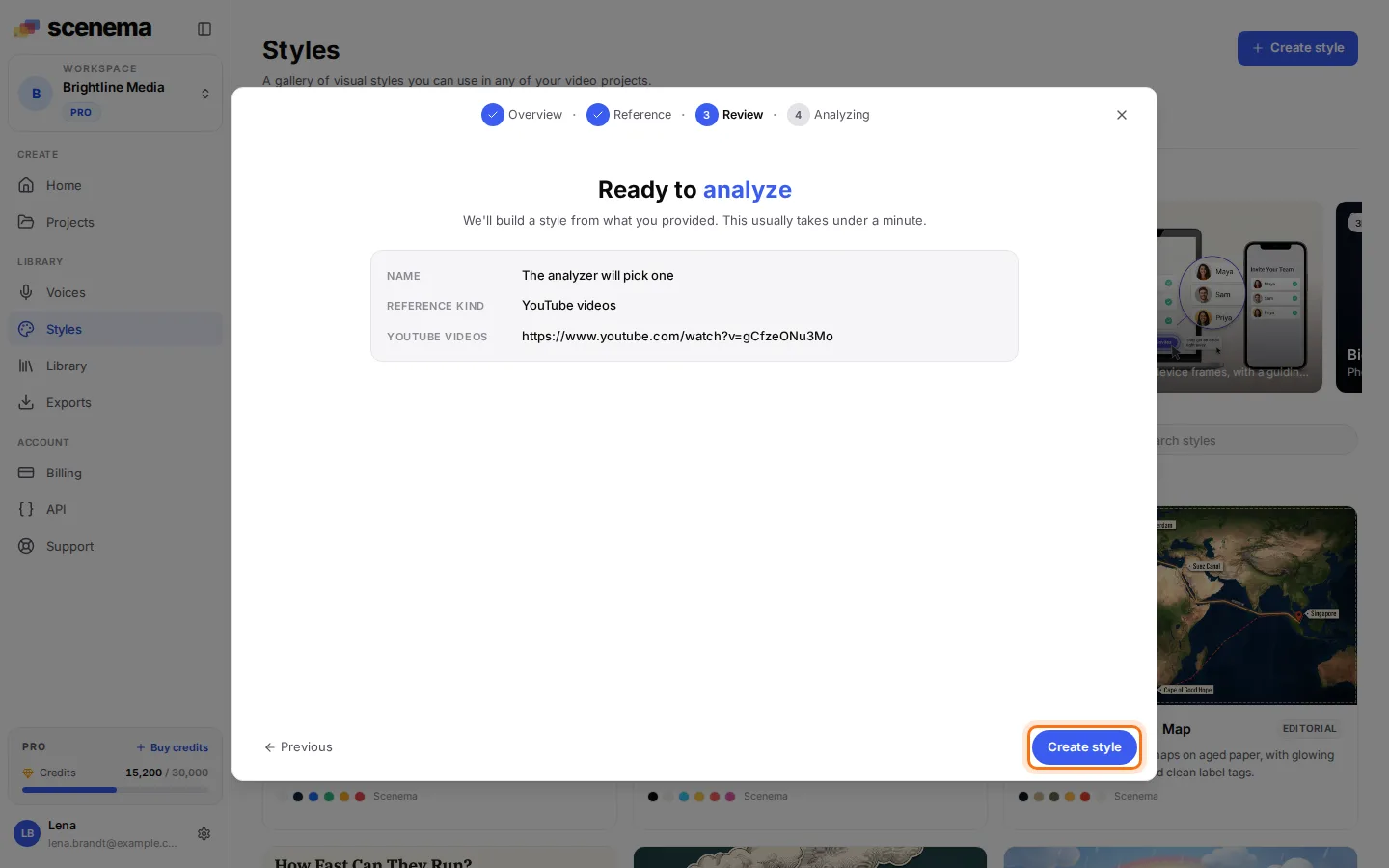
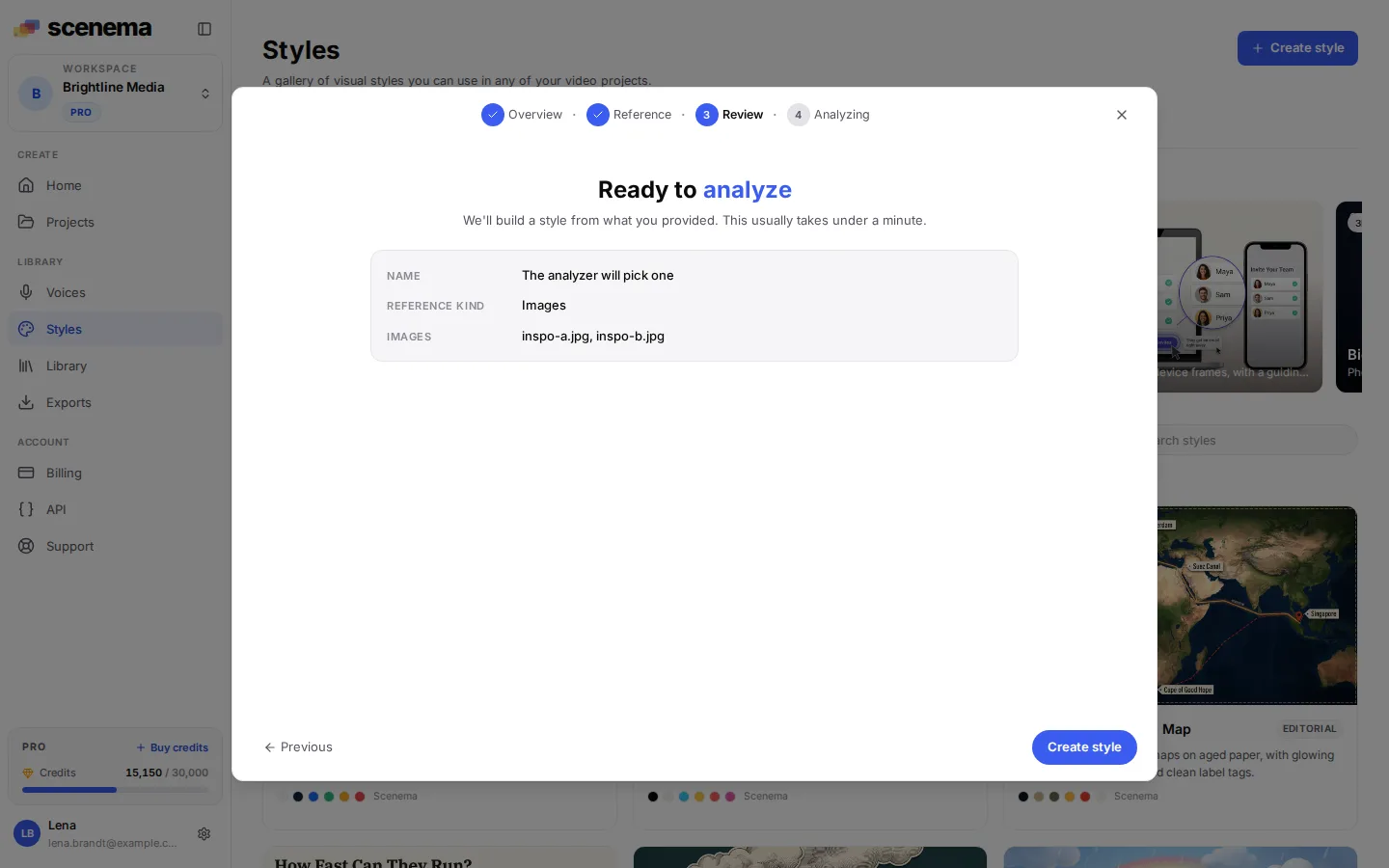
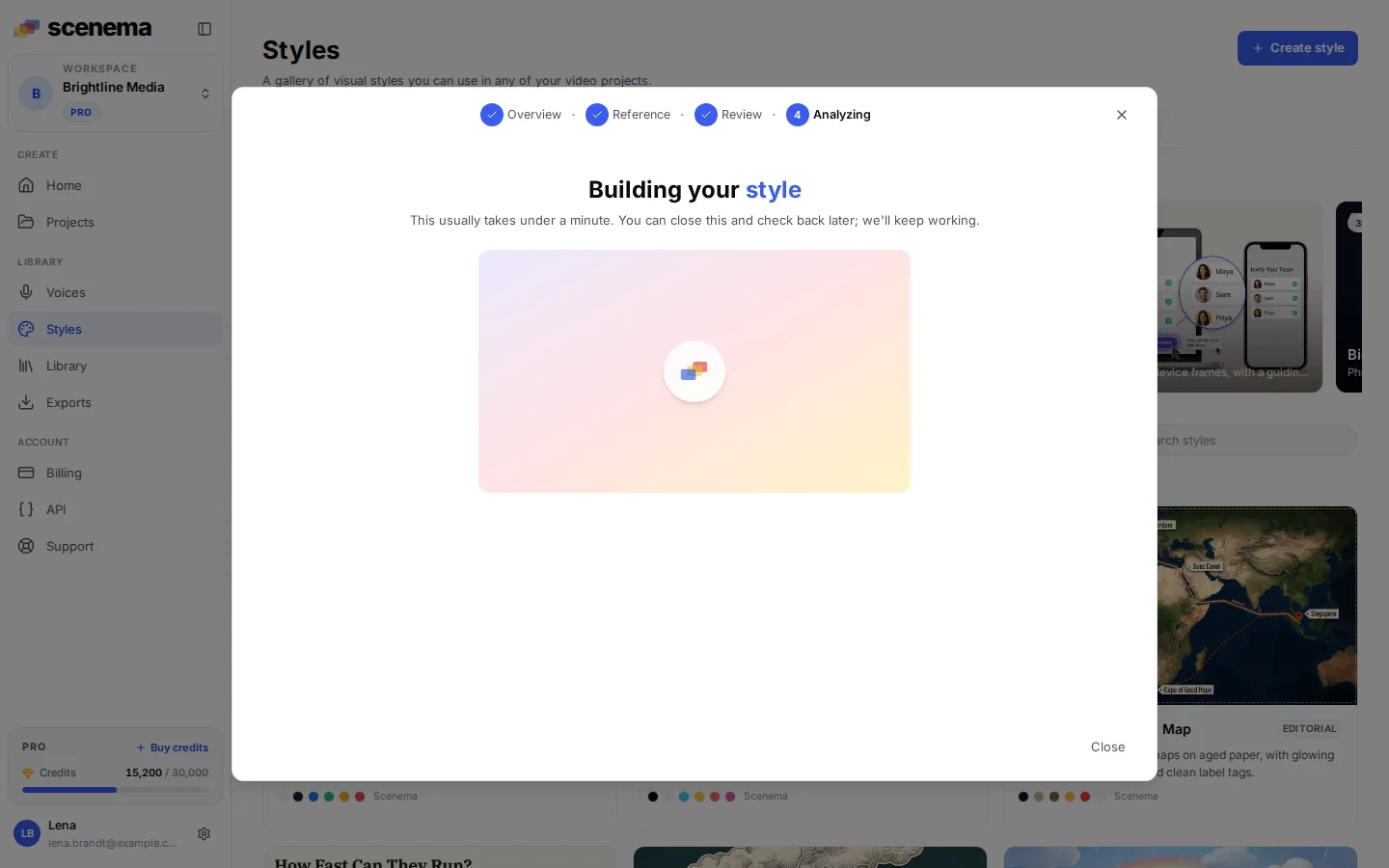
Scenema then reads the references. This takes about half a minute; a long video can take longer. The window can be closed at any time, and the work carries on.
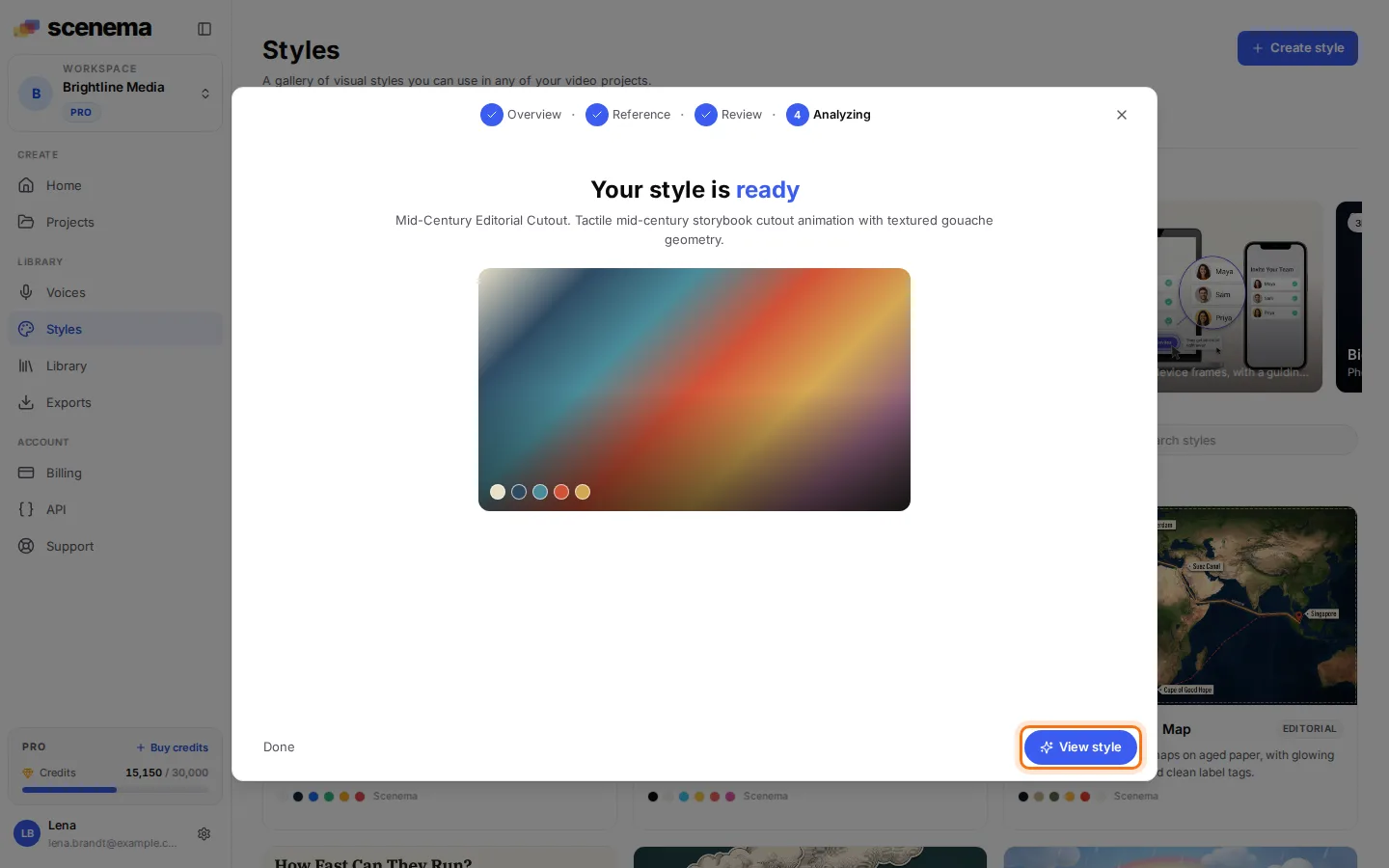
When the style is ready, the last step shows its name and a one line summary. Its model sheet and preview image follow within a minute or two. Click View style (highlighted) to open it.
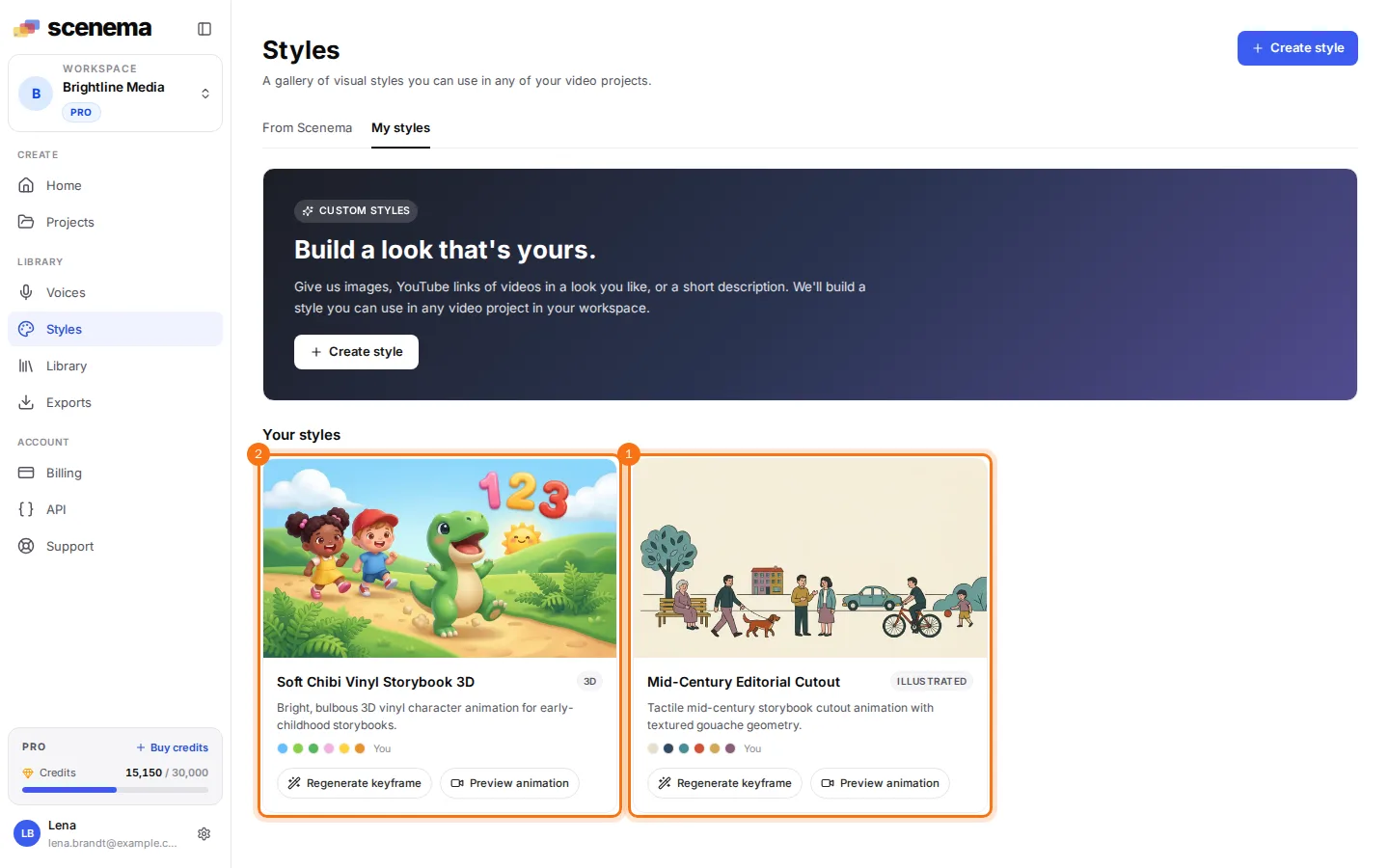
Your styles
Every style of the workspace is on the My styles tab, each with its preview image, its palette and a short description. The two highlighted styles below were made from a YouTube link (1) and from two images (2).
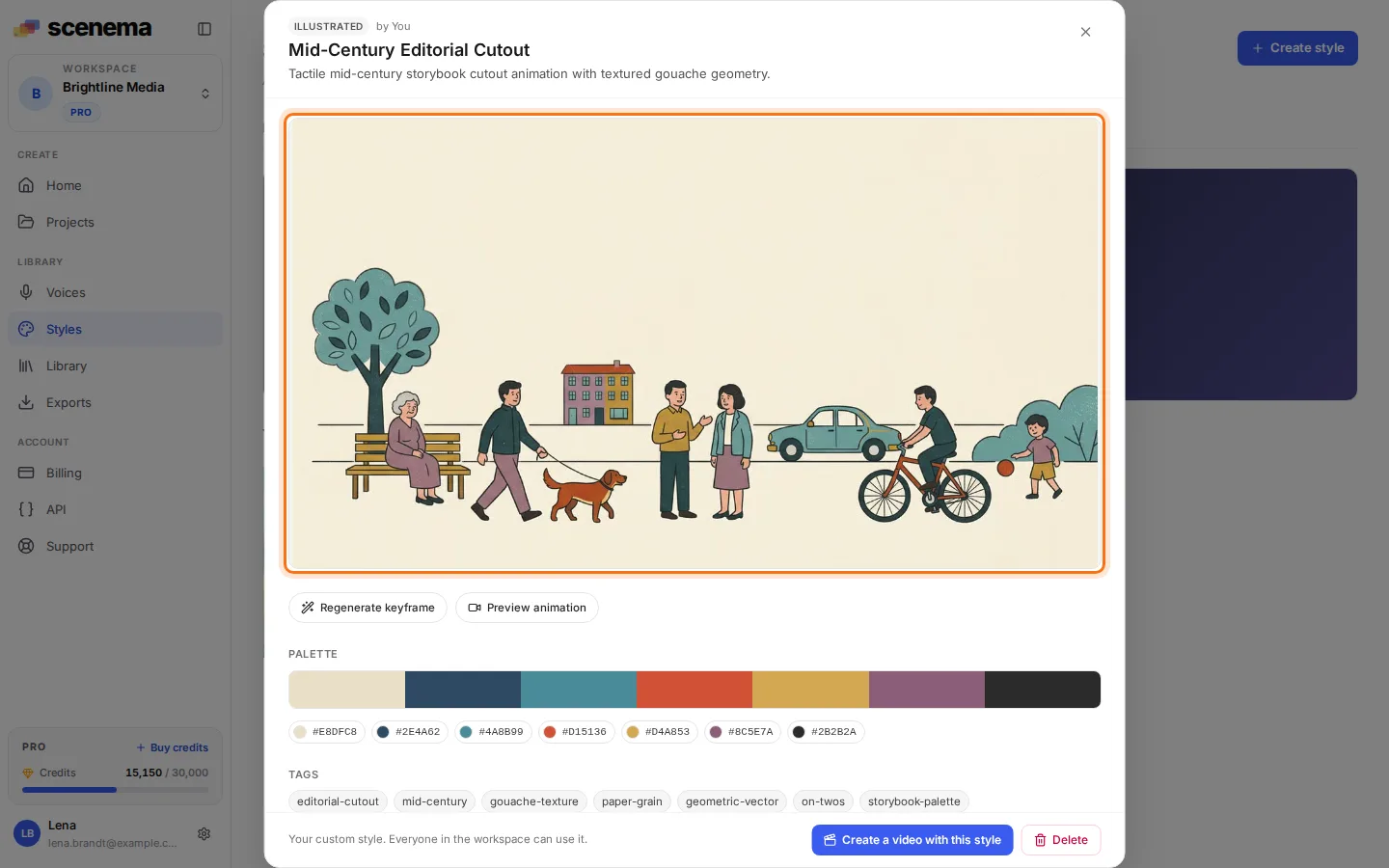
Open a style to see its preview image, its full palette with colour codes, and its tags. From there you can generate the preview again, preview it in motion, or start a video in this style with Create a video with this style.
What it costs
A custom style is paid for with your workspace’s credits, at the same rates as the rest of Scenema. Reading the references is charged like the Director’s other work. Watching a YouTube video is charged too, unless Scenema has watched that video before. The model sheet and the preview image are charged as two images. Generating the preview again costs one image, and a preview in motion is charged as a video clip.
Before it creates a style, generates its preview again or makes a preview in motion, Scenema checks that the workspace has the credits for the images or the clip. If it does not, Scenema says so and offers a top up, and nothing is charged. Reading the references is charged as it happens. If the credits run out before the preview image is made, the style is still created. Top up, open the style and generate the preview again.
Use it in a project
Custom styles appear in the style picker of every project in the workspace, next to the Scenema styles. Pick one when you start a video, or change a chapter’s style later.